
Main Bar & User Menu
Main Bar & User Menu
Understand global controls and the User Menu.
The Main Bar stays at the top of the TallyBoat Platform as you move between pages. It brings together shortcuts for navigation, company selection, communication, notifications and your personal User Menu.
This guide explains the controls shown in the Main Bar and the options available when you open the User Menu. The screenshots use the My Account page as an example; these controls are part of the broader platform interface.
1. Meet the Main Bar
The Main Bar contains seven highlighted controls. Their positions are identified in the annotated screenshot below.
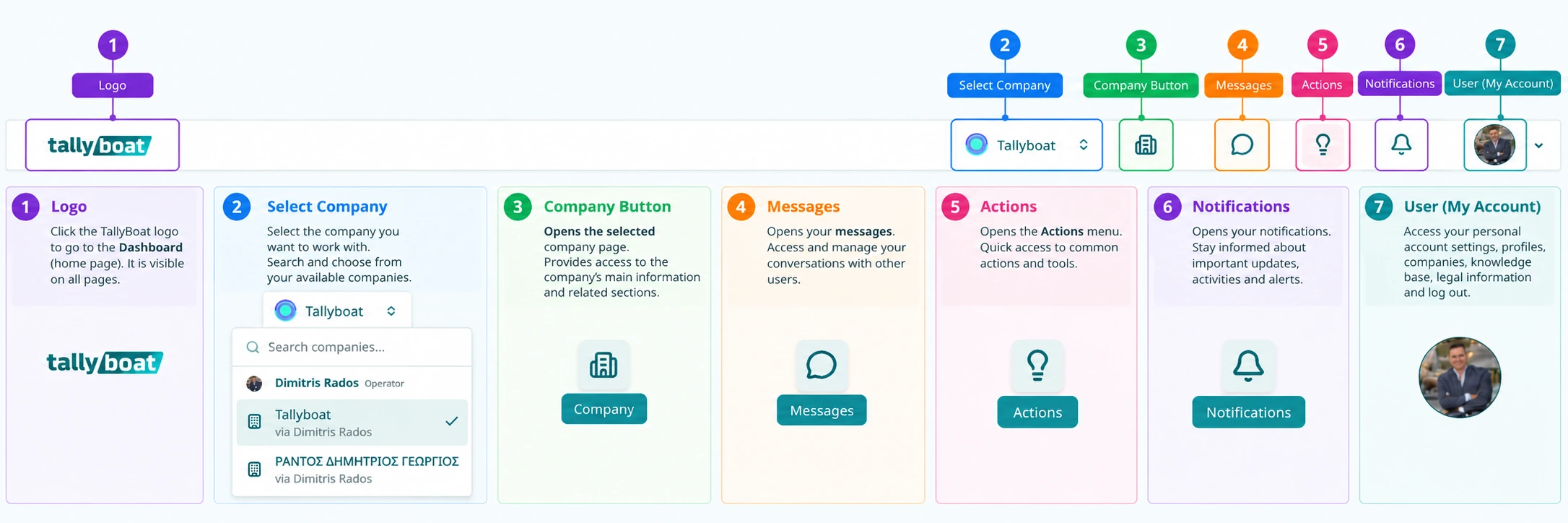
| No. | Control | What it does |
|---|---|---|
| 1 | Logo | Select the TallyBoat logo to return to the Dashboard (home page). |
| 2 | Select Company | Search and select a company from the companies available to you. |
| 3 | Company Button | Open the page of the currently selected company. |
| 4 | Messages | Open your messages and access conversations with other users. |
| 5 | Actions | Open the Actions menu for shortcuts to common actions and tools. |
| 6 | Notifications | Open notifications about updates, activities and alerts. |
| 7 | User (My Account) | Open the User Menu for personal, profile and company options, resources and sign-out. |
2. Choose Your Company Context
Use Select Company (2) to choose the company you want to work with. Open the selector, use the search field when helpful, and select one of the available companies. The selected company is shown in the Main Bar.
- Open Select Company in the Main Bar.
- Search for a company or review the available entries.
- Select the company you want to work with.
- Use the Company Button (3) to open that company’s page and review its information and related sections.
The company selector is separate from the personal User Menu. The selector changes the company you are working with, while the User Menu also gives you access to your available professional Profiles.
3. Messages, Actions & Notifications
Messages (4)
Open the messaging area to access and manage conversations with other users.
Actions (5)
Open the Actions menu for quick access to commonly used actions and tools. Available options may depend on your current context.
Notifications (6)
Open the notification area to review important updates, activities and alerts.
Company Button (3)
Open the currently selected company’s page when you need its main information and related sections.
These shortcuts help you reach shared tools from the top of the platform. Detailed procedures for messages, actions and notifications can be covered in their dedicated guides.
4. Open the User Menu
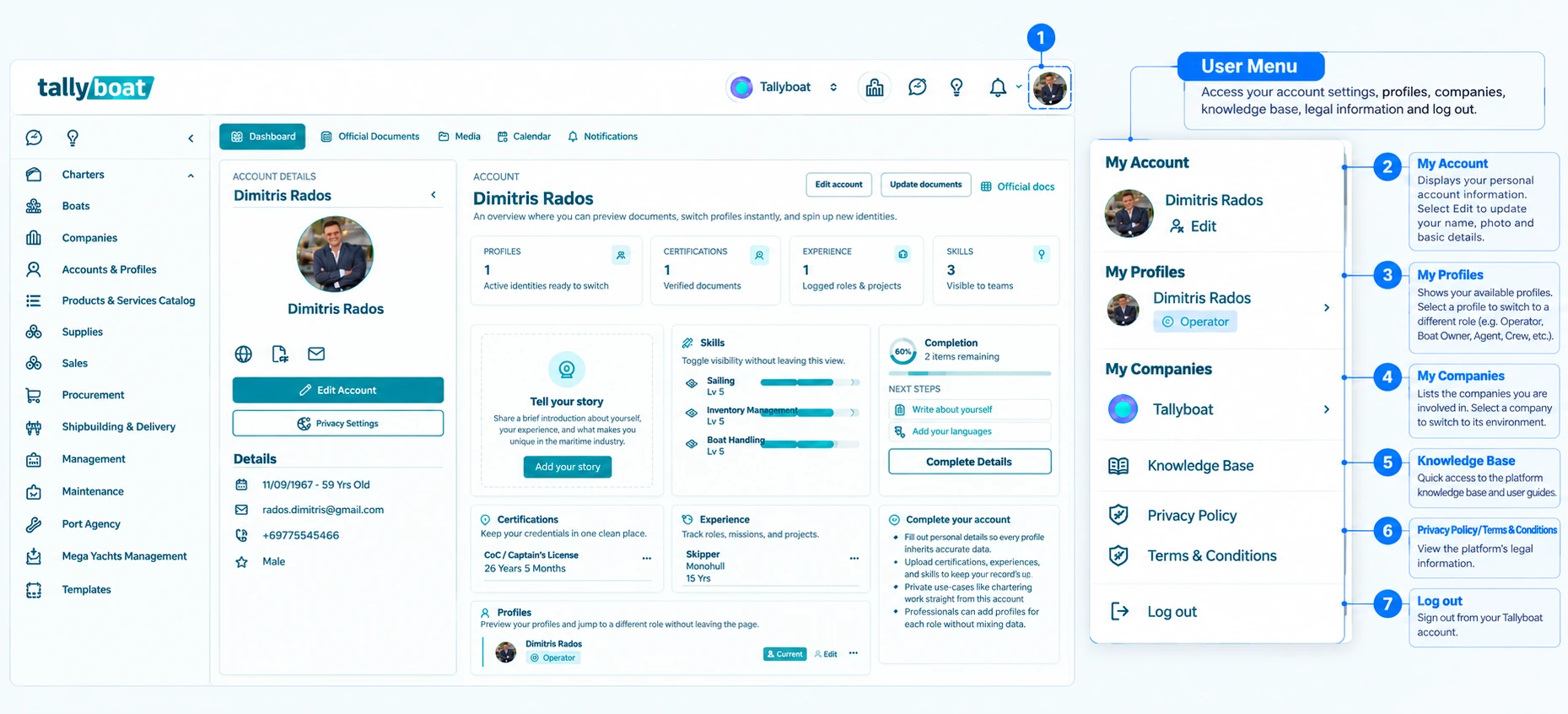
Select your profile photo or user icon (7) on the right side of the Main Bar. The User Menu opens and displays personal account information, available Profiles and Companies, useful links and the Log out option.
5. Understand the User Menu Options
| No. | Menu area | Purpose |
|---|---|---|
| 1 | User Menu | Opens from your user photo or icon in the Main Bar. |
| 2 | My Account | View your personal Account information and select Edit to update basic details such as your name and photo. |
| 3 | My Profiles | See available professional Profiles and select one to switch to a different role, such as Operator, Boat Owner, Agent or Crew, where available. |
| 4 | My Companies | See companies associated with your activity and select one to switch to its environment. |
| 5 | Knowledge Base | Open the TallyBoat Knowledge Base for platform guidance and reference articles. |
| 6 | Privacy Policy / Terms & Conditions | Open the platform’s legal and privacy information. |
| 7 | Log out | Sign out of your TallyBoat Account. |
For detailed changes to your personal information or to a specific Profile or Company, follow the dedicated guide for that area. This article focuses on finding and using the shared menu.
6. Next Steps
Review the Understanding the TallyBoat Interface guide for the overall page layout. The upcoming Navigating Pages & Menus guide will cover the Navigation Menu, Page Bar, tabs and Page Left Panel in more detail.
A direct link to the next guide will be added once its WordPress URL is published.