
Understanding the TallyBoat Interface
Understanding the TallyBoat Interface
Get familiar with the main areas of the TallyBoat Platform and learn how the Sidebar works.
The TallyBoat Platform provides a consistent working environment across its pages and operational modules. Understanding the main interface areas helps you find navigation controls, recognize page-specific tools and stay oriented as you work.
This guide introduces the shared interface layout using the My Account page as an example. Individual pages may offer different content and actions, but the general layout principles remain familiar.
1. Explore the Interface Layout
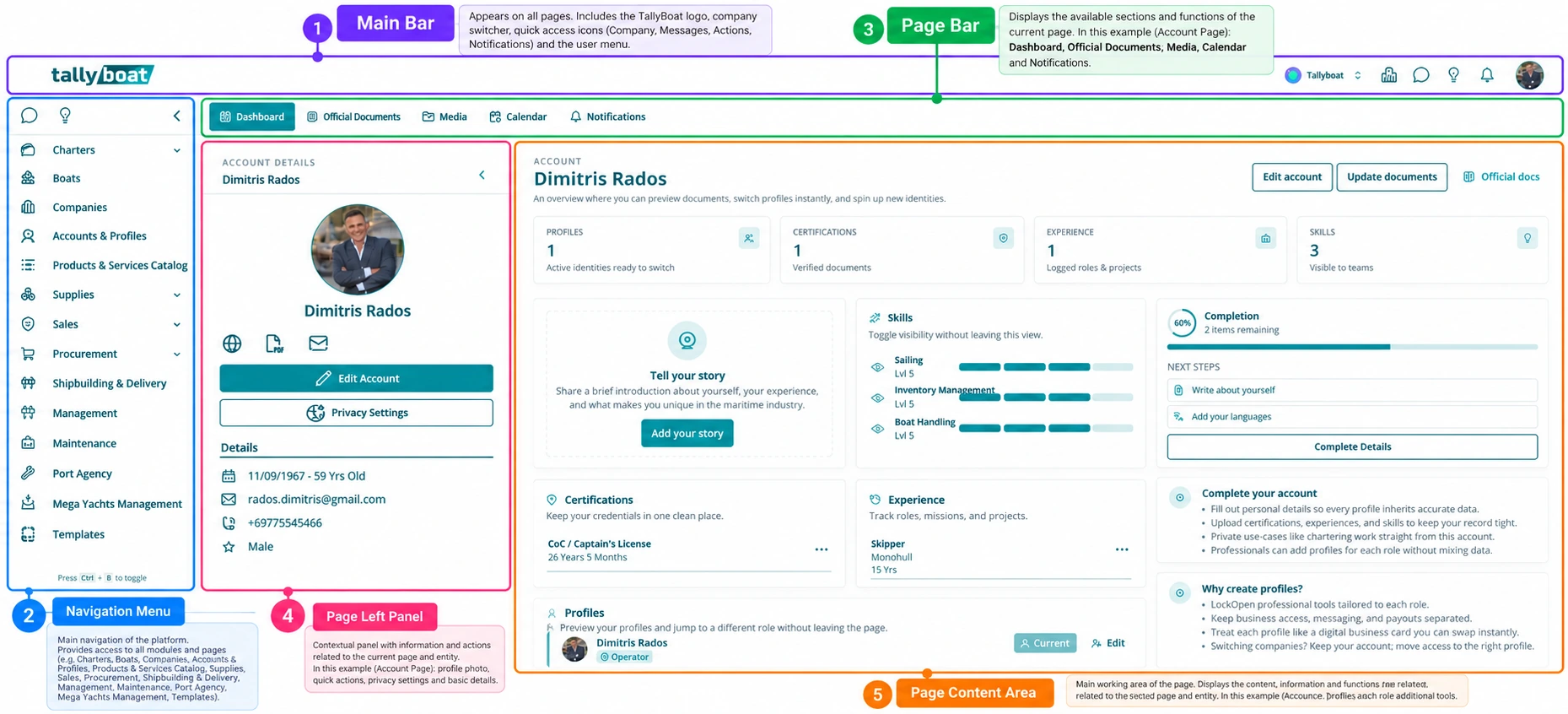
Start by looking at the annotated interface below. The numbered regions show where the main navigation and working areas are located. You can use these names as reference points when following other TallyBoat guides.
2. The Five Main Layout Areas
1. Main Bar
The global area at the top of the platform. It provides access to shared controls and the user context.
2. Navigation Menu
The primary way to move between the platform’s available sections and modules.
3. Page Bar
The page-level area that identifies the current page and provides relevant page controls.
4. Page Left Panel
A contextual area that can help you navigate or select content within the current page, where available.
5. Page Content Area
The main workspace where the selected page’s information, boxes and working content appear.
3. The User Menu
The User Menu is another important interface component, accessed from the global user area. It provides user-related options in the platform. The menu’s individual controls and available entries are covered in the dedicated Main Bar & User Menu guide.
4. How the Sidebar Works
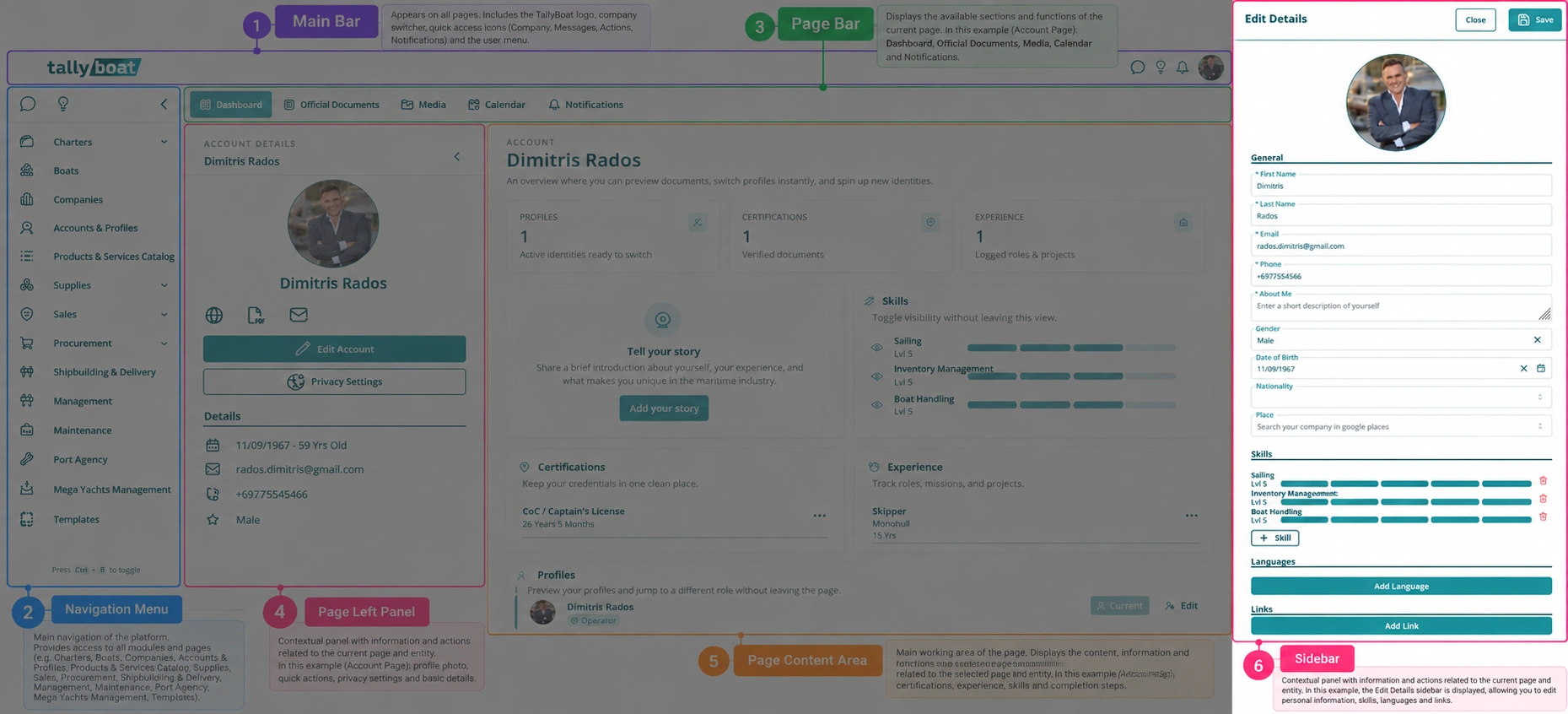
A Sidebar is a contextual panel that opens from the right side of the screen when you choose an action that uses it. It allows you to focus on the selected task while retaining a visual connection to the page from which you started.
In the example below, the Edit Details Sidebar is open over the My Account page. The underlying interface is dimmed, making the active panel easier to recognize.
Opening and using a Sidebar
- Open a page and select an action that displays a Sidebar, such as Edit where available.
- The Sidebar appears on the right, and the rest of the page becomes visually subdued.
- Review the options presented in the active Sidebar and complete the relevant task using the controls shown there.
- Use the panel’s available close control to return to the underlying page. Where the panel includes a save or confirmation action, follow the on-screen instructions before closing.
5. Putting It All Together
As you move through TallyBoat, first identify the global navigation areas, then the controls and content of your current page. When a Sidebar opens, complete the contextual action there and return to the page to continue your work.
The next guides cover Main Bar & User Menu, Navigating Pages & Menus, and Working with Tables & Views.
Direct links will be added when the corresponding WordPress articles are published.