
Hierarchical Records & Tree / Flat Views
Hierarchical Records & Tree / Flat Views
Explore hierarchical records and Tree / Flat views in TallyBoat tables.
TallyBoat tables can present related records as a hierarchy or as individual rows. A Parent–Child structure helps you see how operational requirements, financial records and individual activities connect. Where the Tree / Flat switcher is available, you can choose the presentation that best supports your work.
1. Understand Parent–Child Records
A Parent is a record that groups related records beneath it. A Child is an individual record connected to that Parent. Some workflows contain more than two levels: a Child can itself contain further related records.
Think of the hierarchy as connected operational context: the Parent provides the overall picture, while its Children show the specific activities, financial entries or follow-up records that make up that picture.
In the illustrated Transfers table, one visible chain follows this sequence:
The same table also shows other branches, including Advance Deposit → Deposit → Payment and Transfer In → Payment. These are examples of the record relationships visible in this particular finance view; other TallyBoat tables may use different record types.
2. Explore Tree View
In Tree View, related records appear together with indentation and expand/collapse controls. This makes the relationship between levels visible while retaining the table’s operational and financial columns.
- Open a table that offers the Tree / Flat switcher.
- Select Tree to view its hierarchical presentation.
- Use the chevron beside an expandable row to reveal or hide its nested records.
- Follow the indented levels to understand which records belong together.
- Review status, due date and financial information at the relevant level.
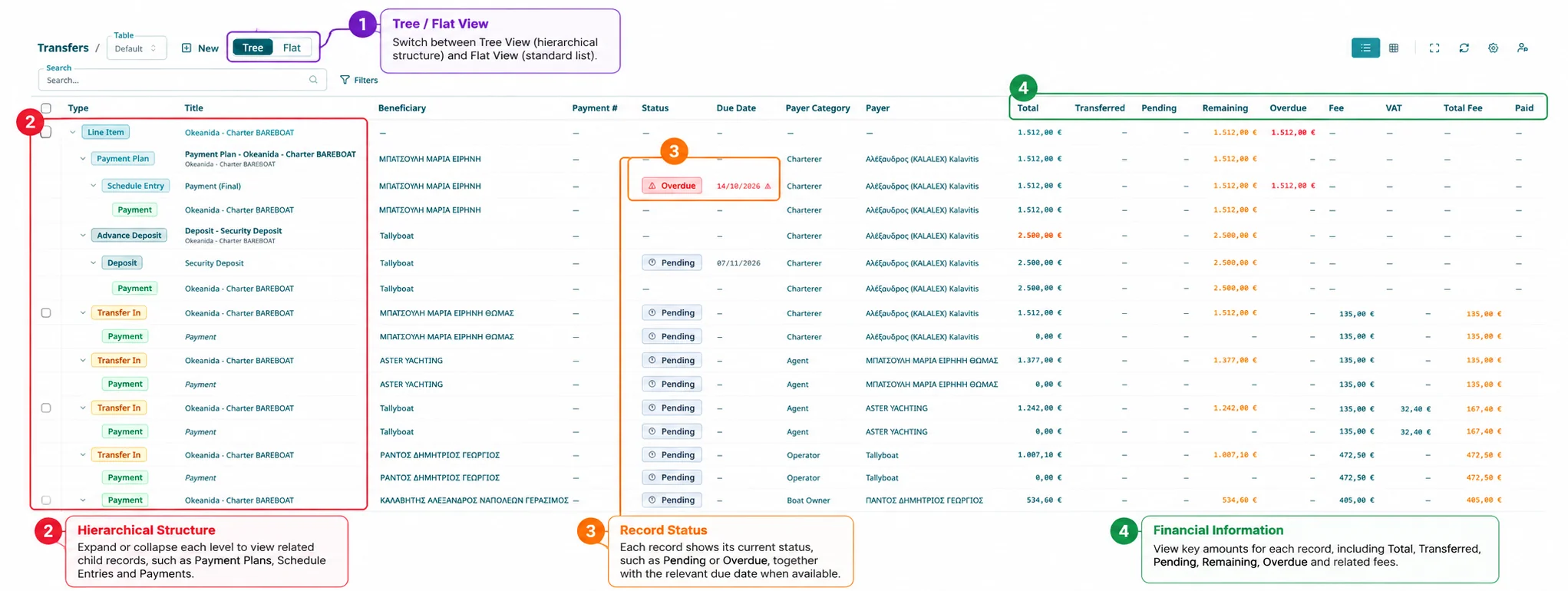
Hierarchy and context
Indented record types and expand/collapse chevrons show how a Line Item relates to its Payment Plan, Schedule Entry and Payment.
Status and financial visibility
Rows display the applicable statuses and amounts, such as Pending, Overdue, Total, Remaining and fees. Interpret each value in the context of its record level.
3. Explore Flat View
Flat View presents individual records in a standard table layout without the visible Parent–Child indentation. In the provided Transfers example, the table shows Transfer In records as separate rows, with beneficiary categories, payers, statuses and amounts.
- In the Transfers table, select Flat in the Tree / Flat switcher.
- Review each displayed record as an individual row.
- Use the available row checkboxes, search and filters to focus on the records relevant to your task.
- Scroll horizontally where necessary to review additional amount columns.
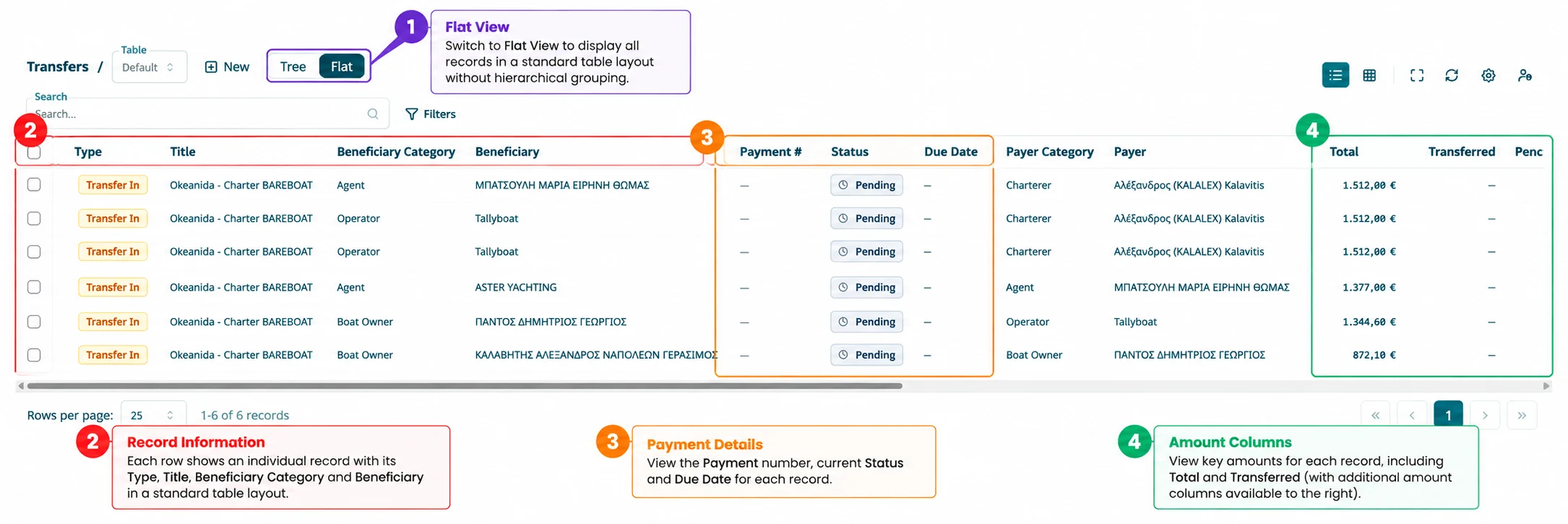
The screenshot shows six Transfer In rows in this particular Flat View. It illustrates a different presentation of the Transfers data, rather than establishing that every type of nested record will appear as a separate Flat View row in every table.
4. Choose Between Tree and Flat
| View | Best for | What you see |
|---|---|---|
| Tree View | Understanding relationships and tracing connected activity. | Indented Parent–Child levels, expand/collapse controls and contextual details. |
| Flat View | Reviewing or selecting individual records in a standard list. | Separate rows with the fields and actions exposed by that table’s Flat View. |
Practical approach: Start in Tree View when you need to understand the full operational chain. Switch to Flat View when you want a simpler record-by-record list. The available records and controls are determined by the specific table.
5. Use Parent Records as Project-Like Overviews
The Expenses table provides another useful example of hierarchical records. Here, a Parent row can act as a project-like operational overview: one central record gathers the related expense items, their context and their combined financial position.
For example, the Generator Parent row groups two Child entries, labeled Agency Fee and Aircondition. The Parent shows 2 items and aggregated amounts of €1,000.00 Estimated and €300.00 Actual.
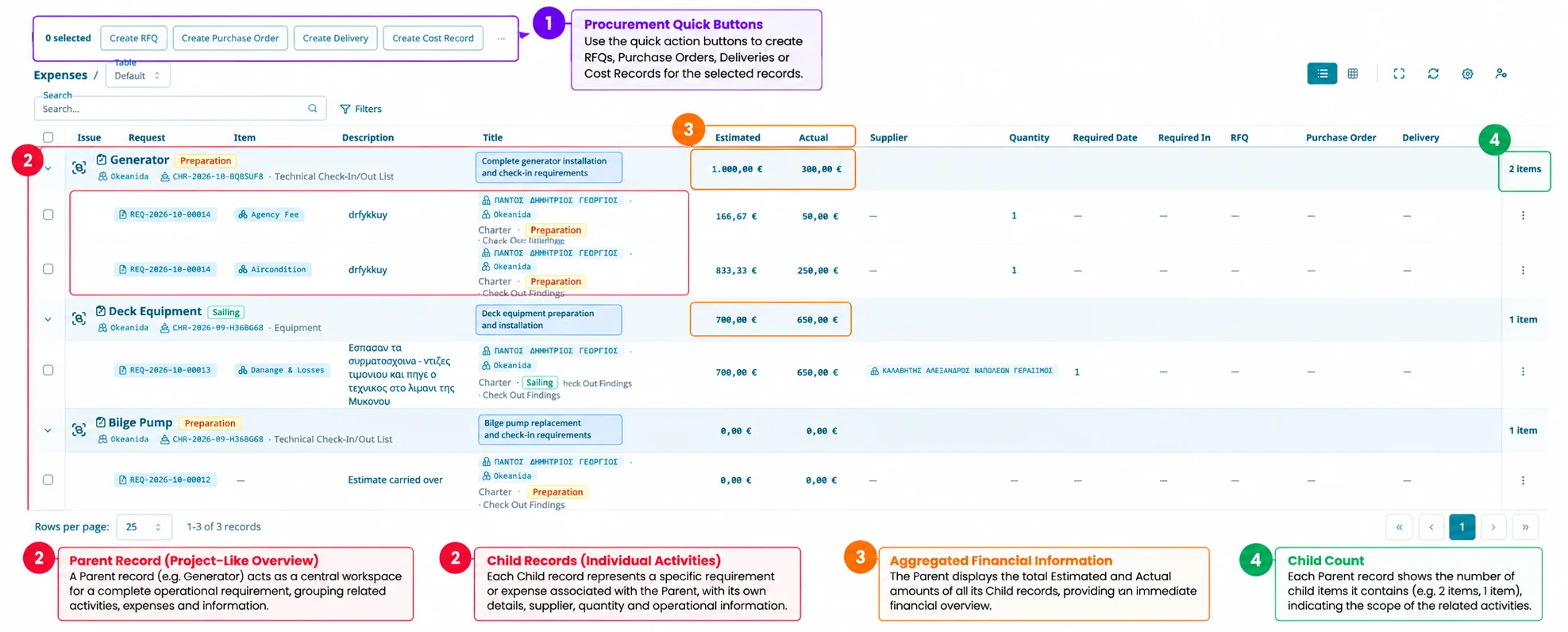
One Parent, one operational overview
A Parent such as Generator gives you a central place to understand the related requirement and its associated Child records. “Project-like” describes this organizational role; the row remains a Parent record in the table.
Multiple individual activities
Each Child row retains its own request, item, description, supplier or quantity information where available. Expand the Parent to examine the underlying entries.
Consolidated financial information
The Parent presents the combined Estimated and Actual values of the visible Child expenses, allowing you to compare the overall budgeted and recorded amounts at a glance.
Procurement Quick Buttons
The toolbar provides shortcuts such as Create RFQ, Create Purchase Order, Create Delivery and Create Cost Record. The actions available for a selection depend on the table and workflow.
One Parent Record. Multiple Connected Activities. One Complete Operational Overview. Hierarchy is more than visual grouping: it helps connect the overall requirement with the individual work and financial information that support it.
6. Select Child Records and Review Actions
Hierarchical tables can provide row checkboxes for working with individual records. In the Expenses screenshot, the Child rows have selection checkboxes, while the Parent rows serve as expandable group headings. The toolbar shows a selection count and procurement shortcuts.
- Expand the Parent to identify the relevant Child records.
- Select the checkbox beside each Child you intend to work with.
- Review the displayed selection count and the available action controls.
- Check which specific records are included before continuing with an action.
Parent selection and action scope: The supplied screenshots show expandable Parent rows and selectable Child rows, but they do not demonstrate a Child being selected or the resulting Parent checkbox state. A partial Parent-selection indicator, any automatic Parent selection and the exact records affected by a bulk action should be verified in the live workflow before being treated as platform-wide behavior.
For a step-by-step explanation of table selection and bulk action panels, see KB-PN-10 — Selecting Records & Bulk Actions.
7. Key Takeaways
- Parent–Child relationships connect an overall record with its related details and activities.
- Tree View makes hierarchical levels visible and supports expanding or collapsing nested records.
- Flat View presents the records available in that view as a standard table list.
- Expenses Parents can provide project-like overviews with aggregated Estimated and Actual amounts and Child counts.
- Selection and procurement actions should be applied after checking the selected Child records and the scope shown by the interface.