
Navigating Pages & Menus
Navigating Pages & Menus
Learn how to navigate TallyBoat pages, menus, tabs, panels and workspaces, and understand how the platform organizes information and everyday operations.
TallyBoat brings different operational areas into a connected platform. Navigation starts with the Navigation Menu, continues into the selected page, and then becomes more specific through the page’s panels, tabs and record views. This guide follows that sequence using three annotated screenshots.
Article Index
IndexSearch platform buttons, fields and terminology from this navigation guide and its reference screenshots.
1. Start with the Navigation Menu
The Navigation Menu is the entry point to the platform’s modules and their pages. In its Expanded View, it displays module names and, where applicable, nested pages. For example, the annotated screenshot shows Charters with related pages such as Transfers, Maintenance, Check Ins and Check Outs, and Procurement with Requests, RFQs, Purchase Orders, Deliveries and Cost Records.
Use the Collapse Sidebar control to reduce the menu to module icons. The Collapsed View keeps the modules accessible while giving more room to the active page; the illustrated Expand Sidebar control restores the named navigation menu. The screenshot also identifies the Messages and Actions shortcuts at the top of the menu.
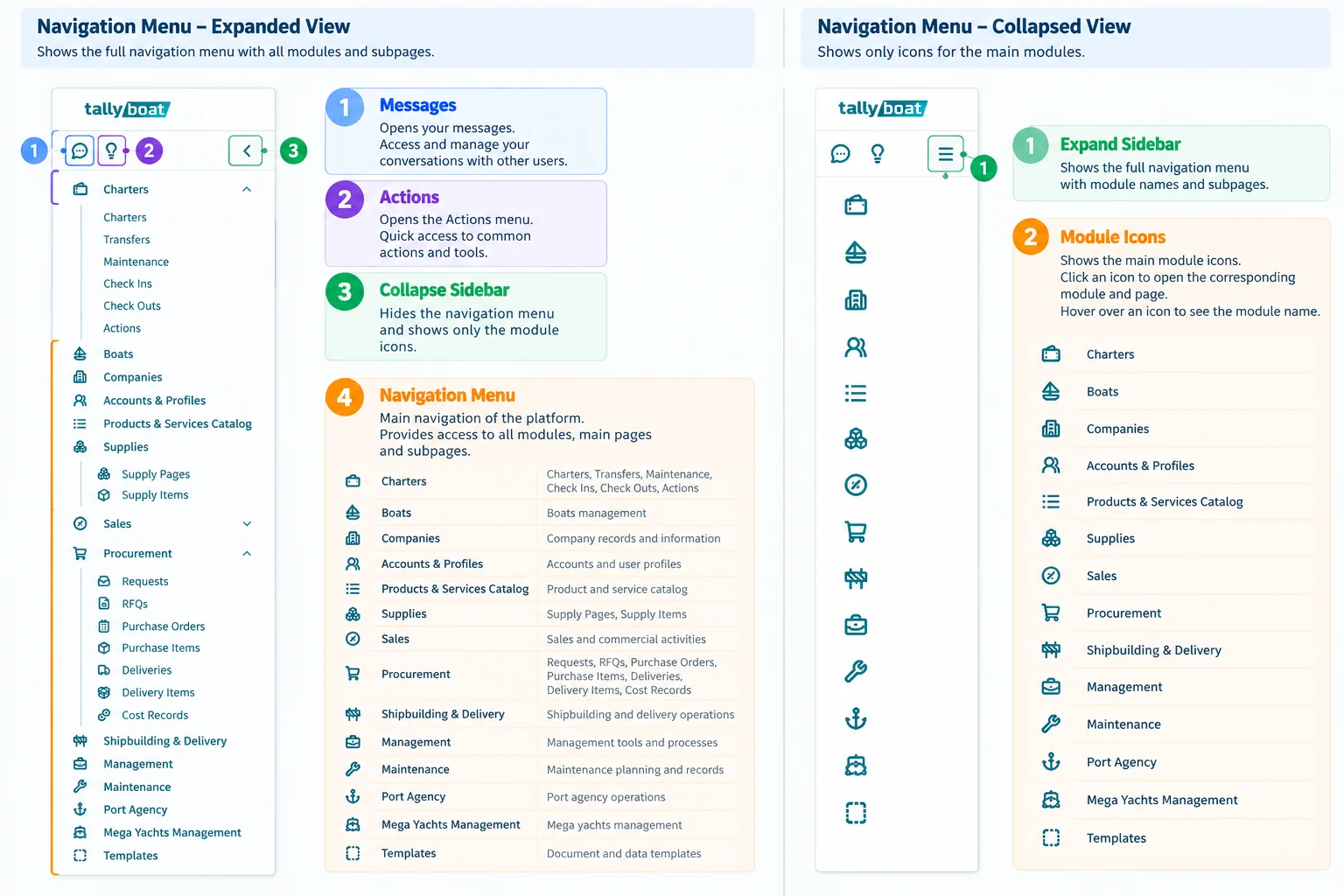
Expanded View
Useful when learning the platform, browsing module names or locating a subpage within a module.
Collapsed View
Useful when you already recognize the module icons and want more space for the page you are working on.
- Locate the module related to your task in the Navigation Menu.
- In Expanded View, open the module’s subpages when available.
- Select the destination page and review its title and available controls.
- Collapse or expand the menu according to your preferred working space.
2. Understand the Full Page Context
After opening a destination, orient yourself within the full interface. The second screenshot shows an Account page with the left navigation, a top area, the selected account’s information panel and the main content area. The User Menu is open to illustrate access to My Account, My Profiles, My Companies, the Knowledge Base, legal information and Log out.
This image is intentionally included between the Navigation Menu and the detailed Page Left Panel examples: it shows where the panels belong within a complete page before the next section focuses on one part of that layout.
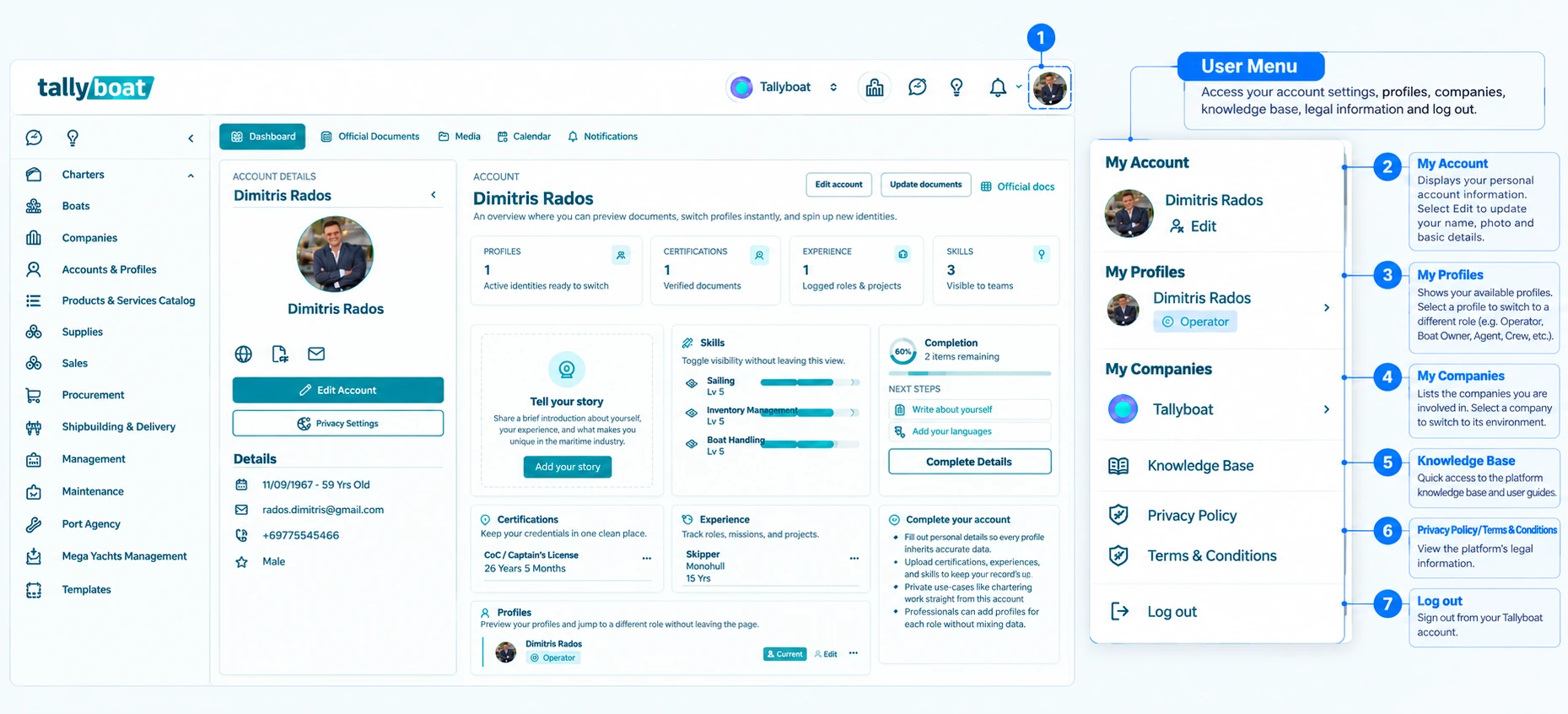
Navigation context: The Navigation Menu takes you to a platform area; the page then presents the selected entity or activity and its available information. The User Menu provides account-, profile- and company-related destinations. For a detailed explanation of its options, see KB-PN-02 — Main Bar & User Menu.
3. Use the Page Left Panel
The Page Left Panel gives context for the entity you are viewing. The third screenshot compares three examples—Account, Company and Boat—to show how TallyBoat uses a familiar layout while changing the information and quick actions to suit the selected entity.
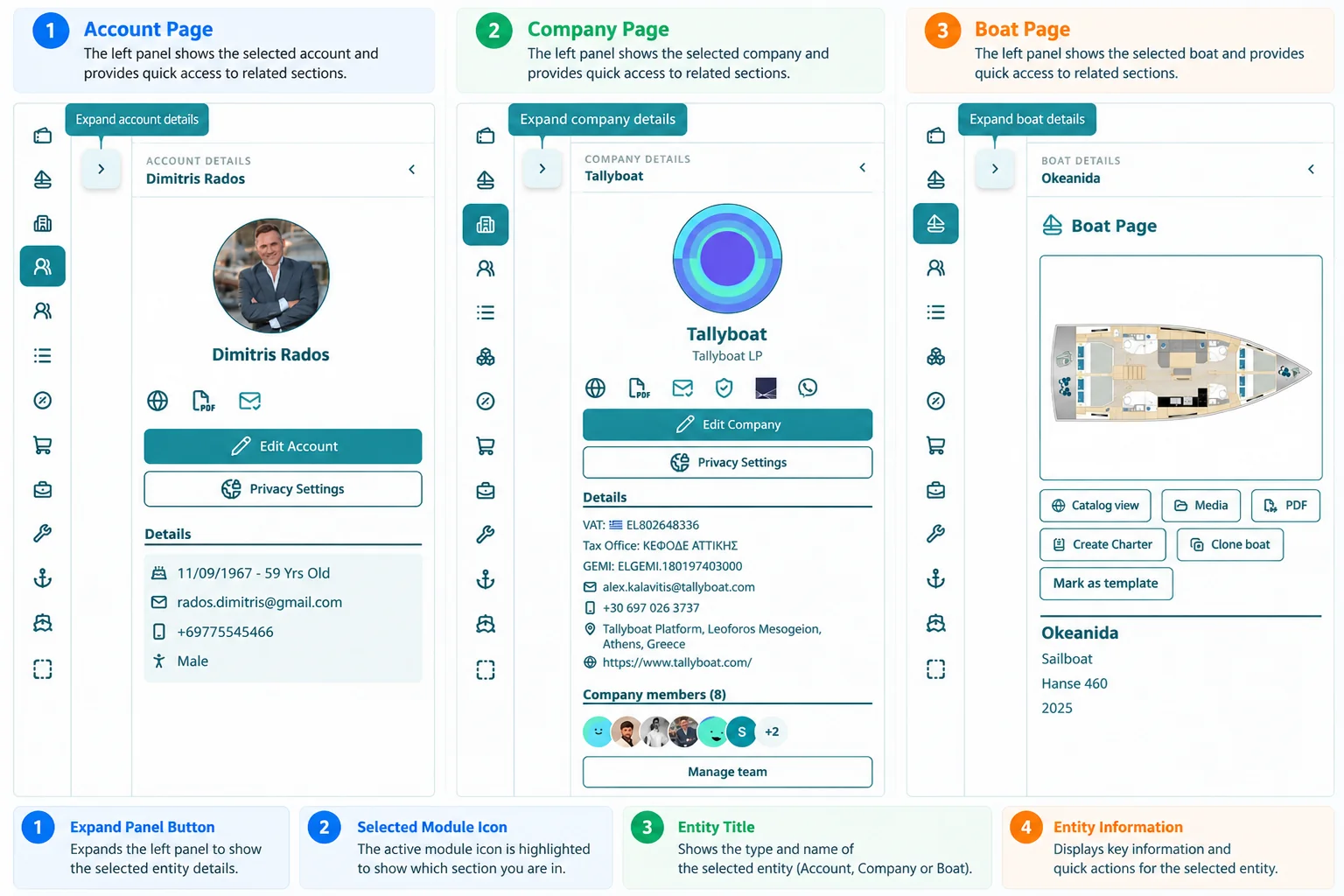
Account Page
Shows the selected account, personal details and account-related actions such as editing account information and privacy settings.
Company Page
Shows the selected company, business details, team information and relevant company actions.
Boat Page
Shows the selected boat, a visual overview and boat-specific actions such as viewing media or opening a related catalog, as illustrated.
Consistent navigation
The selected module icon is highlighted and the entity title identifies the current context, while the panel can be expanded to reveal more details.
The distinction is important: the page structure stays recognizable, while its content follows the selected entity. This helps users move between different areas without relearning the overall layout.
4. Move Through Tabs, Content Areas and Workspaces
Within a page, tabs and other page-level controls organize the available sections. In the full-page Account example, the content includes tabs such as Dashboard, Official Documents, Media, Calendar and Notifications. Selecting a tab takes you to that page’s corresponding information area.
The Page Content Area is where the relevant information appears. Depending on the page, this may include overview cards, detailed sections, tables, records or other operational content. The selected entity and the controls exposed by that page determine what you can review or manage.
For some tasks, a more detailed workspace or record-specific interface may be available. Treat the workspace as the focused environment for the current activity, with its own applicable tabs, panels and actions; the exact layout varies by entity and workflow.
About the screenshots: The three approved images demonstrate the Navigation Menu, a full Account page and entity-specific Left Panels. They do not document every possible workspace or sidebar editing workflow. Available tabs, actions and layouts should always be interpreted in the context of the page you are using.
For detailed table layouts and view controls, continue to KB-PN-04 — Working with Tables & Views.
5. A Practical Navigation Routine
- Choose the module. Use the Navigation Menu to find the area that matches your task.
- Open the relevant page. Expand a module and choose a subpage when the menu offers one.
- Confirm the current context. Read the page title and identify the selected Account, Company, Boat or other record.
- Use the Page Left Panel. Expand it when you need entity details or context-specific quick actions.
- Explore the content. Select an available tab or view to access the information relevant to your task.
- Continue into the record or workflow. Use the controls shown on that page to review or manage the next level of detail.
Navigation principle: Module → Page → Selected Entity → Tab, Panel or Workspace → Relevant Information and Actions.
6. Key Takeaways
- The Navigation Menu provides access to modules and nested pages in Expanded View, or compact module icons in Collapsed View.
- A full page combines navigation, entity context and the main content area.
- The Page Left Panel adapts to the selected Account, Company or Boat while preserving a consistent visual structure.
- Tabs, panels and workspaces organize the details and actions available for the current task.
- Use the related Knowledge Base articles for deeper instructions about the User Menu and table views.
KB-PN-01 — Understanding the TallyBoat Interface
KB-PN-02 — Main Bar & User Menu
KB-PN-04 — Working with Tables & Views
KB-PN-05 — Understanding Platform Modes (article link to be added when confirmed)