
How to Log In or Register on TallyBoat
How to Log In or Register on TallyBoat
Welcome to TallyBoat — your connected digital workspace for the yachting industry.
Whether you own a yacht, manage charters, work as a broker, provide services, or collaborate with a yachting company, everything begins with your personal TallyBoat Account. One Account gives you a consistent way to access your professional Profiles, connected companies, and the operational tools relevant to your activities.
Getting started is straightforward: open the platform, choose Google, LinkedIn, or email authentication, and complete a short Account setup if this is your first visit.
1. Open the TallyBoat Platform
Visit the central TallyBoat application using the button below. You will arrive at the Login / Register screen, where you can select your preferred authentication method.
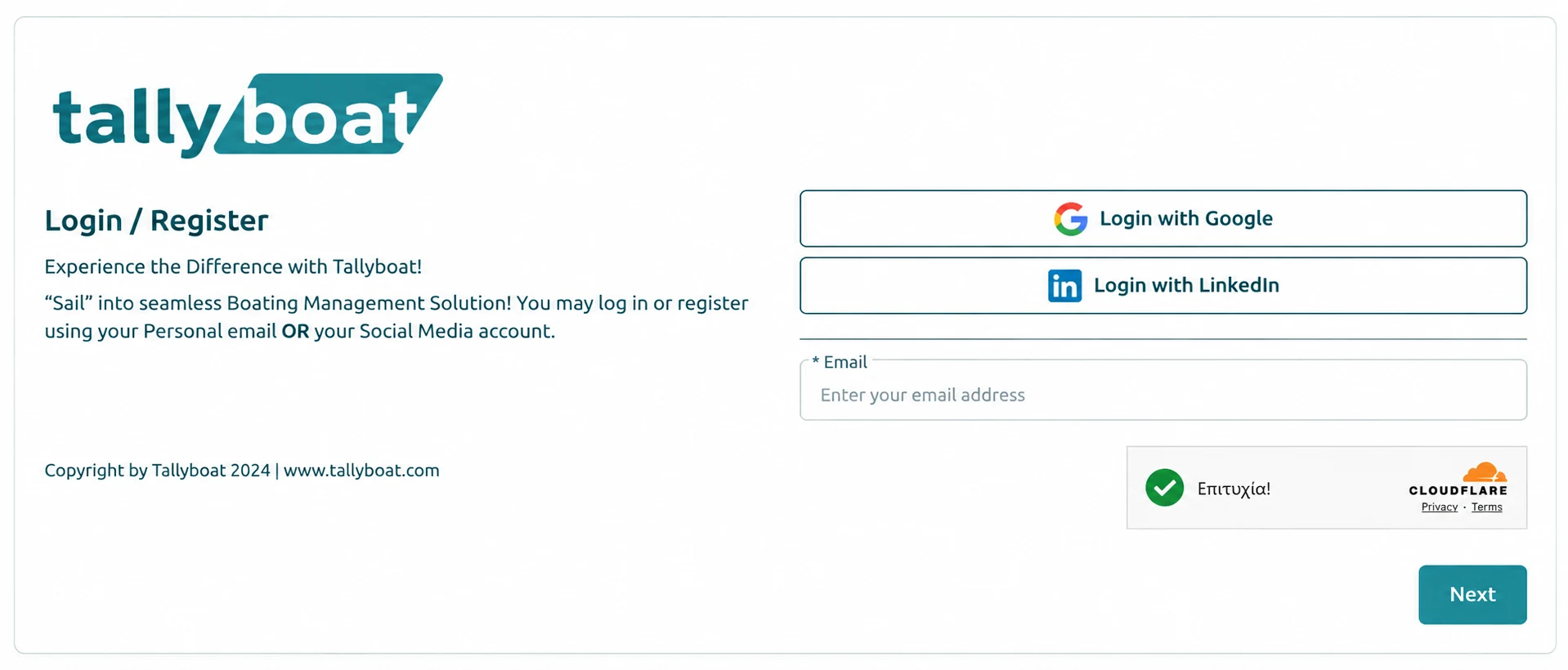
2. Choose How to Sign In
All three methods provide access to your personal Account. For a first registration, they lead to the same short Account setup screen.
Choose your Google account and confirm sign-in
Authenticate using your LinkedIn account
Receive and enter a one-time verification code
First-time registration only
2.1 — Sign In with Google
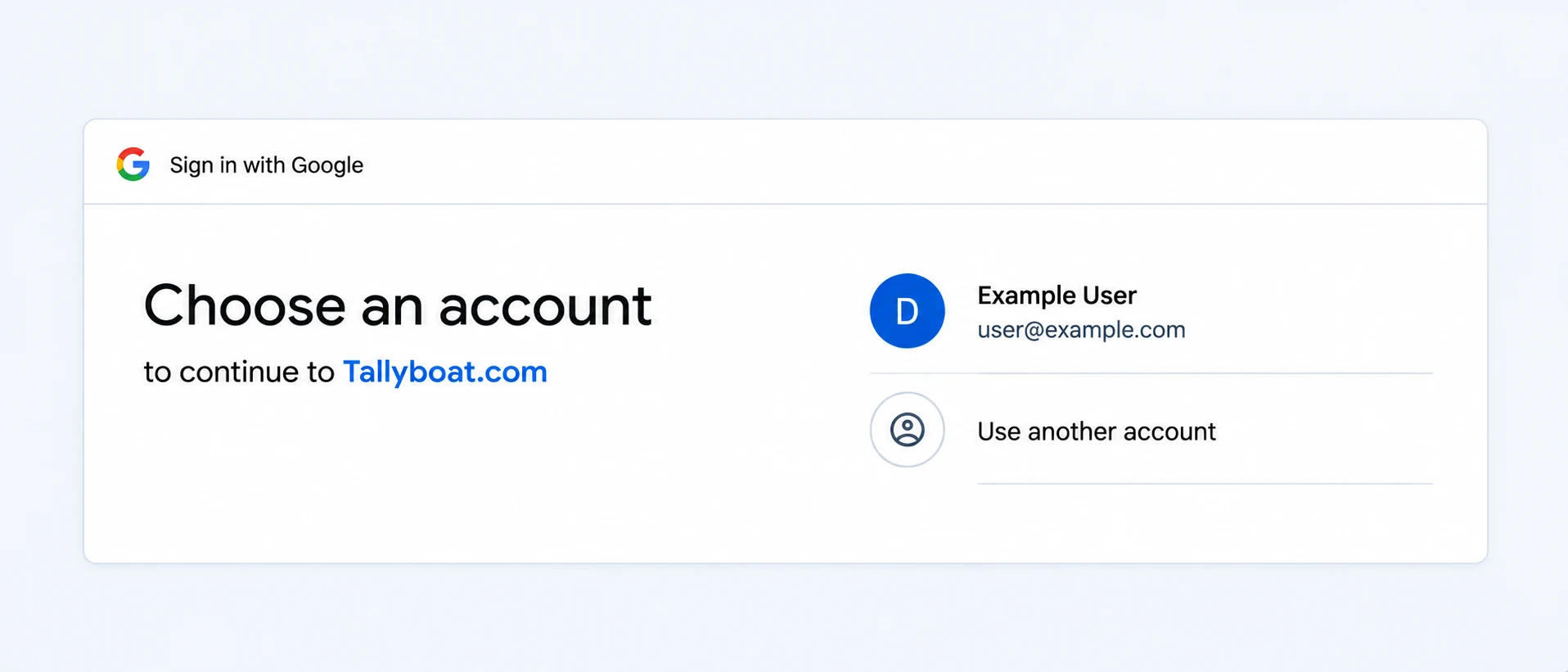
Choose Login with Google on the Login / Register screen. Google presents the available accounts. Select an existing account or choose Use another account.
Review the selected account on the Google confirmation screen and choose Continue to finish authentication.
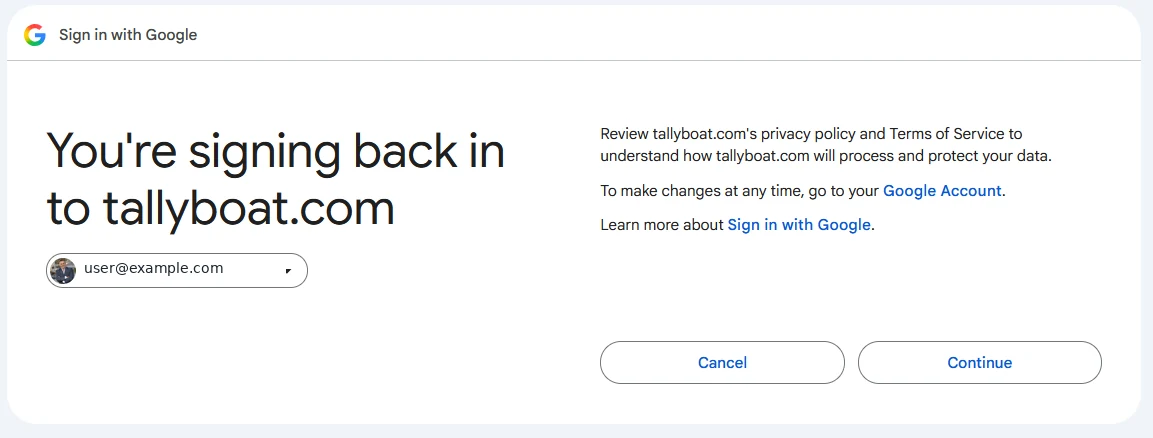
After successful authentication, first-time users proceed to Account setup. Returning users enter their TallyBoat environment.
2.2 — Sign In with LinkedIn
Choose Login with LinkedIn. Enter your LinkedIn email or phone number and password, select Sign in, and complete any additional verification requested by LinkedIn.
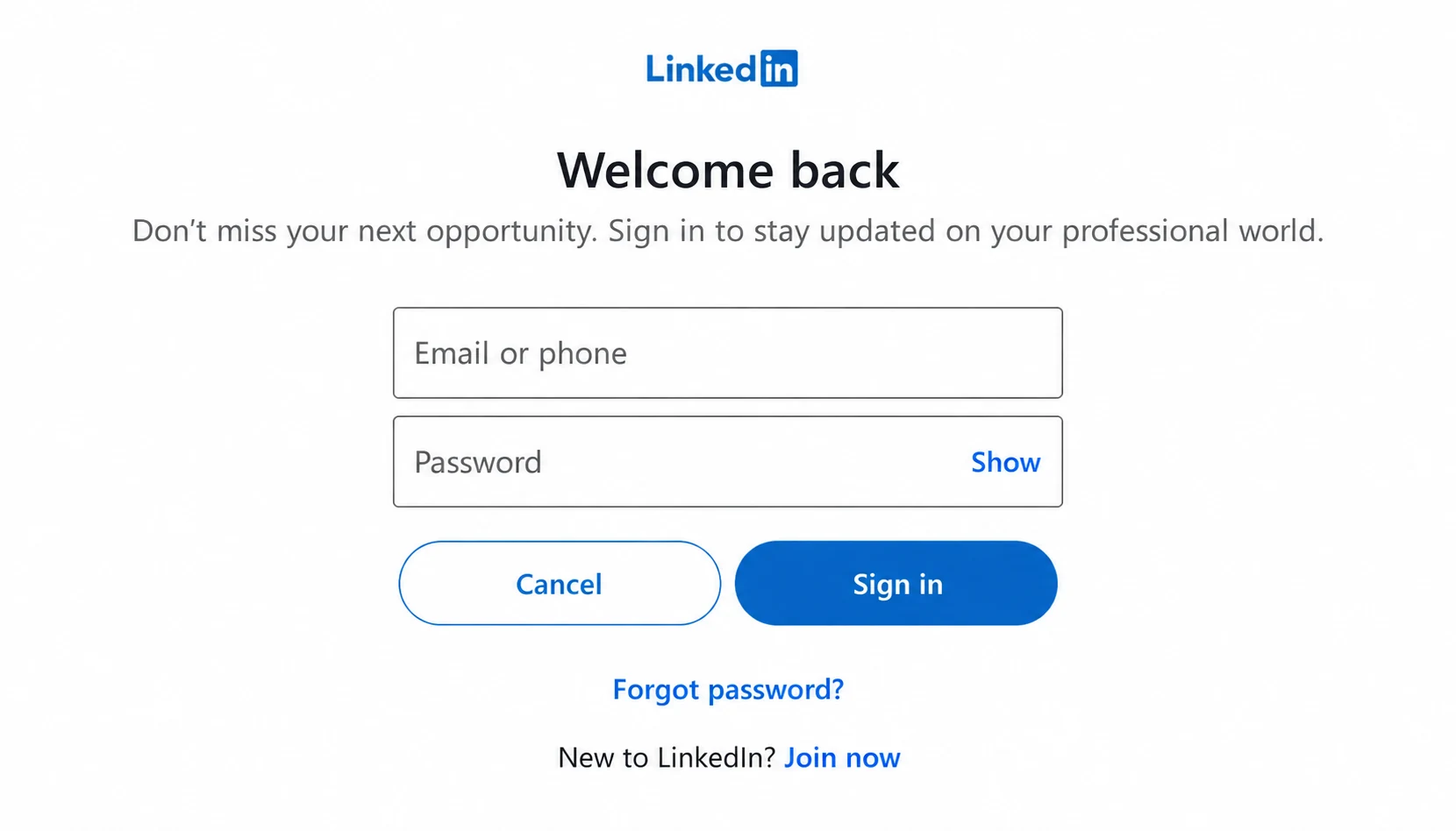
When LinkedIn authentication finishes, new users proceed to Account setup and returning users access TallyBoat.
2.3 — Sign In or Register with Email
Enter your email address on the TallyBoat Login / Register screen and select Next. The Verify screen opens, and TallyBoat sends an email containing a six-digit One-Time Password (OTP) at the same time.
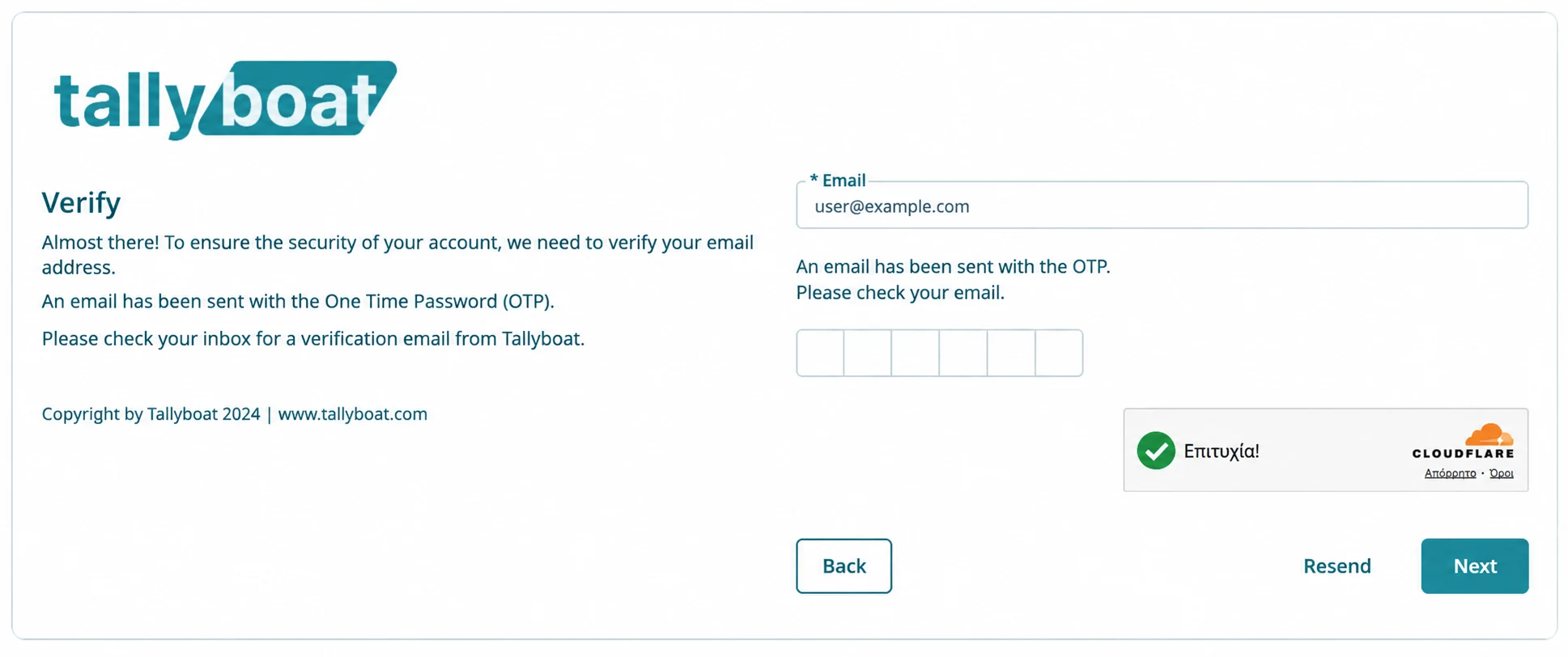
While the verification screen is open, check your inbox, enter the six-digit code, and select Next. The email also contains a VERIFY LOGIN button. If you read the email later after closing the page, use that button to return to the verification process and enter your code. You can select Resend to request a new code.
3. Complete & Personalize Your Account
After your first successful Google, LinkedIn, or email authentication, you reach Complete & Personalize Your Account. This is a quick, one-time registration step to establish your personal Account.
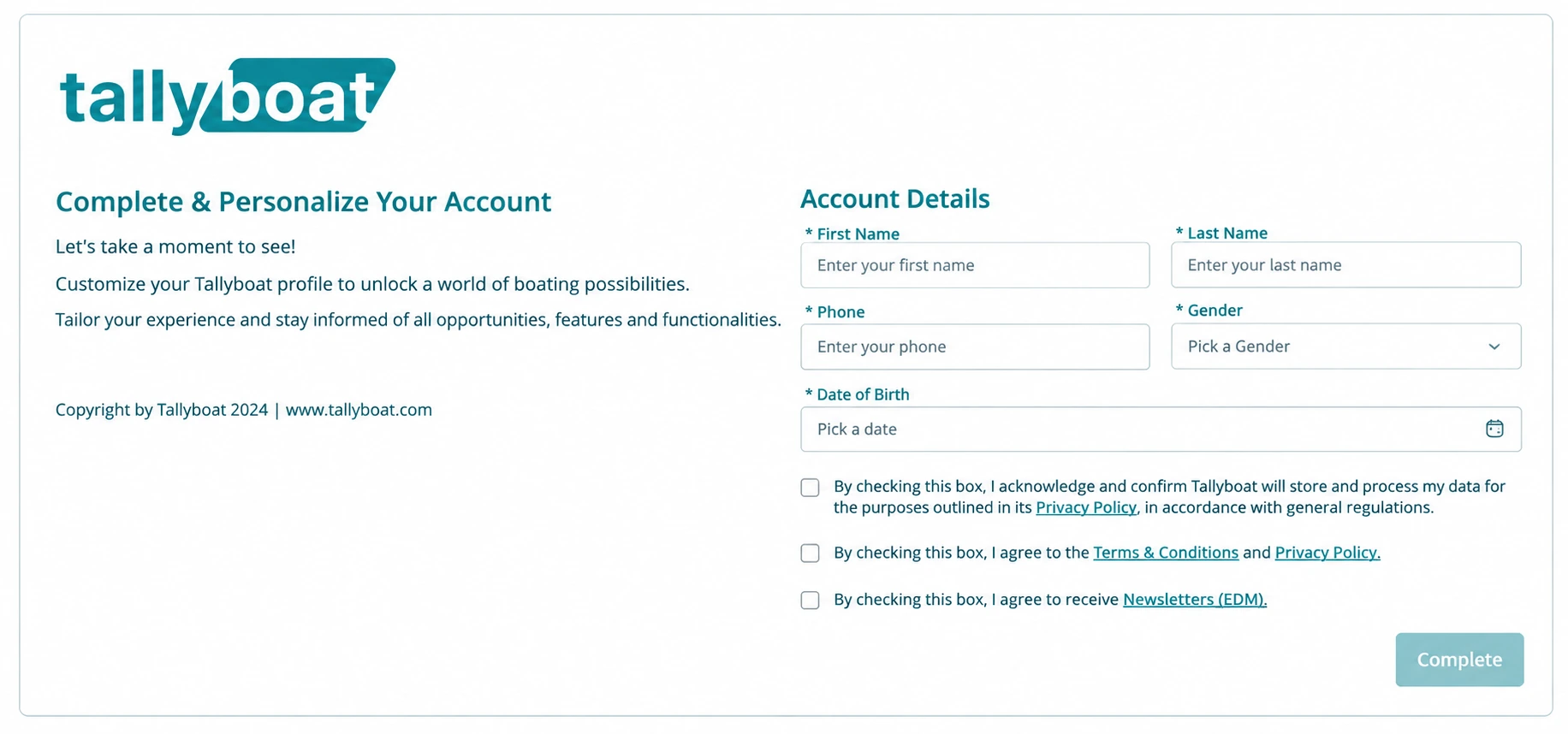
Enter the requested personal details — first name, last name, phone, gender, and date of birth — review the consent statements and linked policies, and select Complete. You can enrich or update your Account information later.
4. Welcome to Your My Account Page
Once you complete the initial setup, TallyBoat opens your personal My Account page inside the platform. This is where you can review your details, see your Profiles, and manage personal information, skills, certifications, experience, and Account completion tasks.
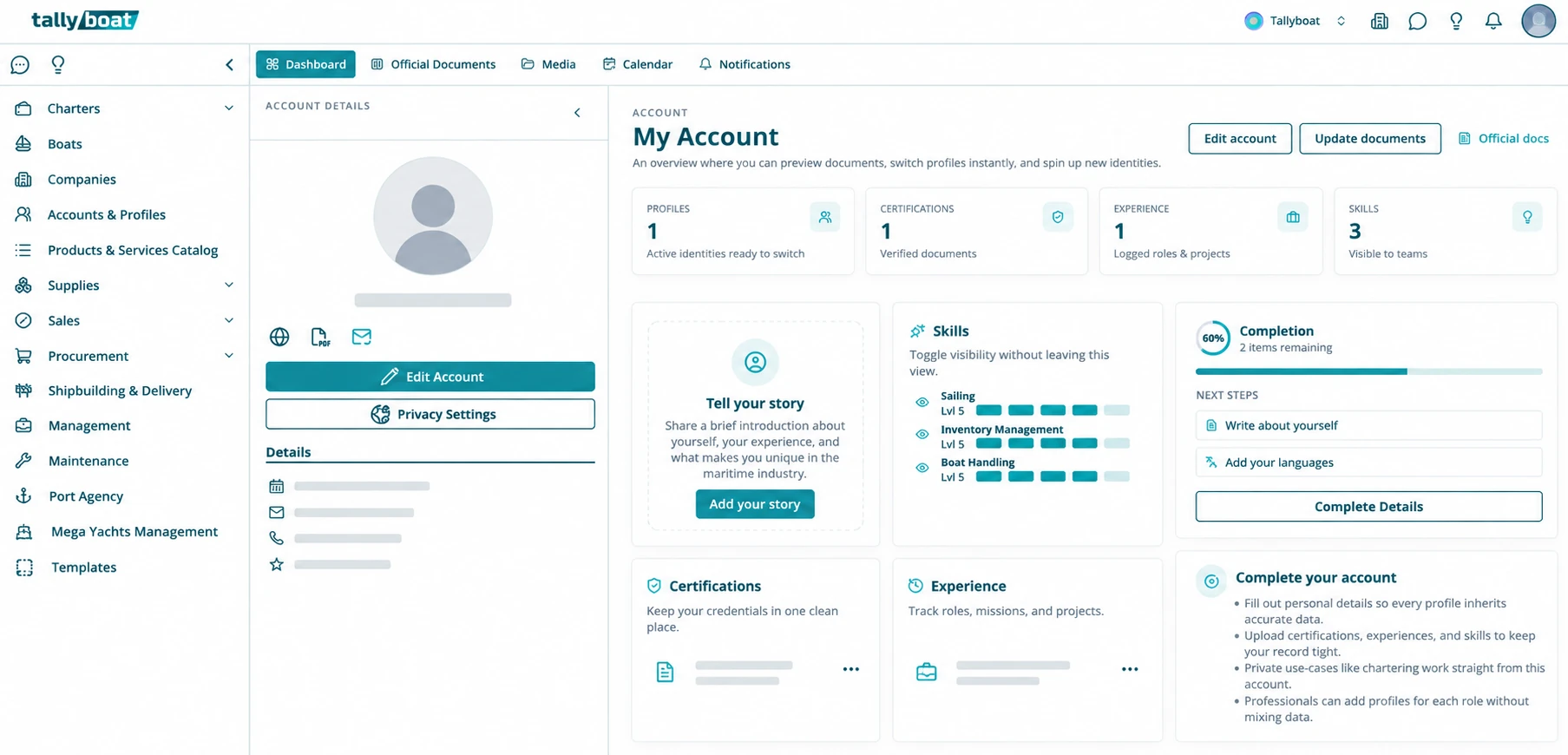
Your Account is now ready. As your activity grows, you can create additional professional Profiles and connect to companies without creating a new personal login.
5. Next: Edit Your Account
Learn how to update your personal information, add further details, and manage your TallyBoat Account.
The next article will be linked here once its WordPress URL is published.