
Working with Tables & Views
Working with Tables & Views
Understand tables, views, filters and record actions.
Tables help you explore and manage information across the TallyBoat Platform. Depending on the page and the available settings, you can choose how information is displayed, adjust table columns, filter records and perform actions on selected entries.
This guide introduces the main table controls using the Charters area as an example. Explore the annotated screenshot, discover the key features and follow the related guides for more detailed instructions.
1. Explore the Table Interface
The screenshot below highlights 11 table controls. Their availability may vary according to the current page, table configuration and user access.
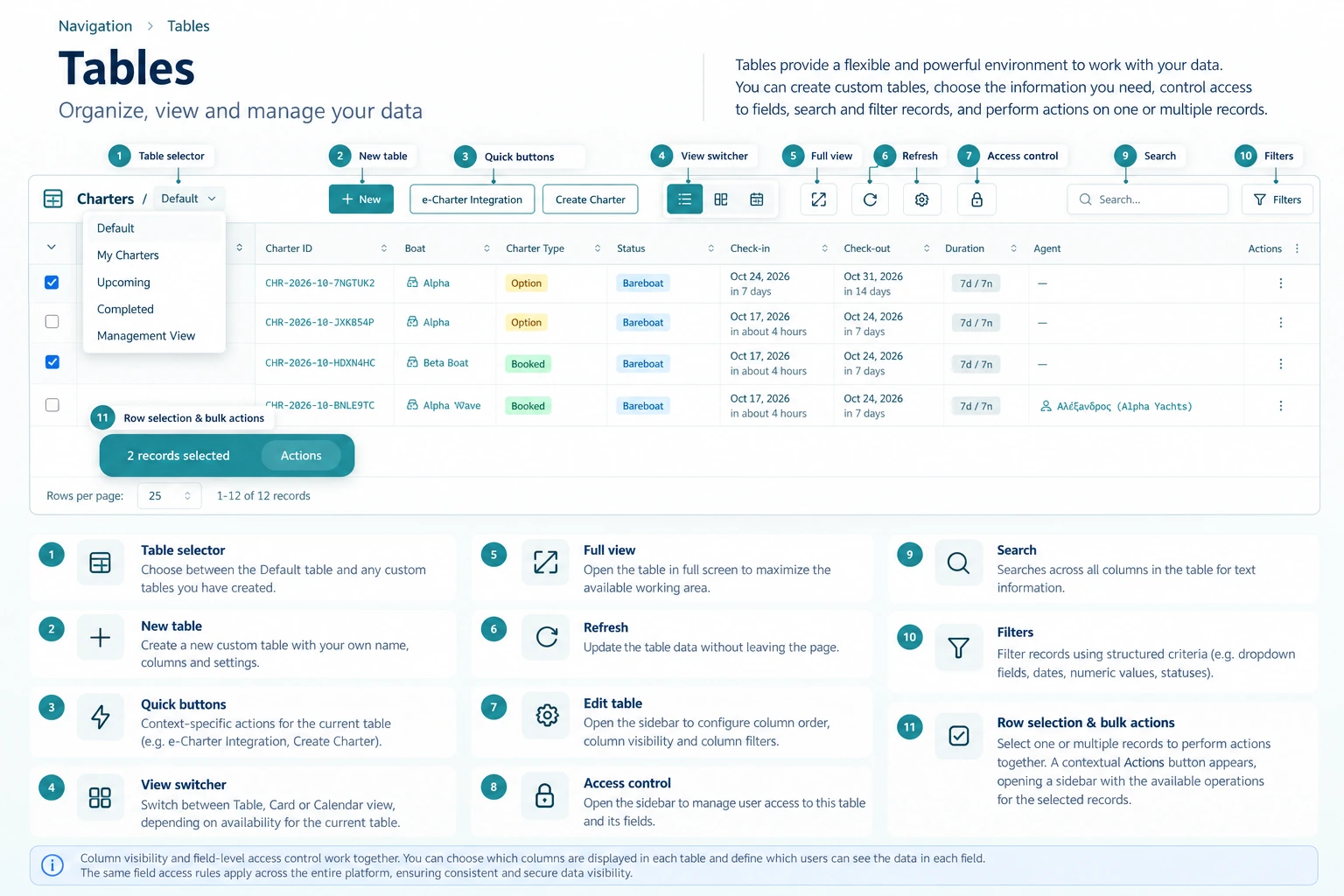
2. Discover the Key Features
TallyBoat tables offer features for organizing information, customizing layouts, exploring records and managing everyday operations. Explore the eight capabilities below and follow each topic to its related guide for practical explanations and step-by-step instructions.
Mode Selector
Switch between available Platform Modes to work within different operational contexts. Each Mode can present relevant navigation sections, information and functions for your current activity.
Table Selector & New Table
Switch between the Default Table and available Custom Tables, or create a new table configured for your workflow.
Edit Table
Customize your table by rearranging columns, showing or hiding fields, and configuring which columns are available for filtering.
Filters & Saved Views
Apply filter criteria to focus on relevant records and save frequently used filter combinations as reusable views.
Access Control
Manage which users can access each selected table, where table access settings are available.
Table, Card & Calendar Views
Display records using Table, Card or Calendar layouts when those views are available in the current workspace.
Selecting Records & Bulk Actions
Select one or multiple records and use available actions on your selection. Record-level actions may also be available.
Hierarchical Records & Tree / Flat Views
Explore parent-child record relationships and switch between Tree and Flat presentations where these options are available.
3. Understand the Everyday Controls
Alongside the advanced table features, everyday controls help you navigate records, find information and make the most of your working area. The available options depend on the current table and workspace.
Quick Buttons
Access shortcuts for frequently used actions, such as creating a new record or starting a related process. Available shortcuts depend on the table and operational context.
Full View
Expand the table’s working area to make more room for reviewing columns and records.
Refresh
Reload the table data to see recent updates, newly created records and changes made during your work.
Search
Enter a keyword or search term to find relevant records in the current table. Use Filters for structured criteria or combinations of conditions.
Sorting Columns
Where sorting is supported, use the column controls to organize records by values such as names, dates or statuses.
Pagination & Rows per Page
Choose how many records to display per page and navigate through additional results when available. Review the displayed record range and total count.
Good to know: Search finds records using a search term, while Filters let you apply structured criteria and save frequently used combinations for later use. Sorting and pagination options depend on the table.
4. Next Steps
Start with the annotated table overview, explore the everyday controls, then choose a feature above to learn how it works in more detail.
For an introduction to the overall platform layout, see Understanding the TallyBoat Interface. For a practical next step, explore Creating & Customizing Tables.