
Creating & Customizing Tables
Creating & Customizing Tables
Learn how to edit existing tables, create custom tables, manage columns, apply filters, save views and control table access in TallyBoat.
Tables give you flexible ways to organize and work with records across the TallyBoat Platform. You can use the Default Table, create Custom Tables for specific workflows, choose which columns appear, apply filters and control who can access individual tables.
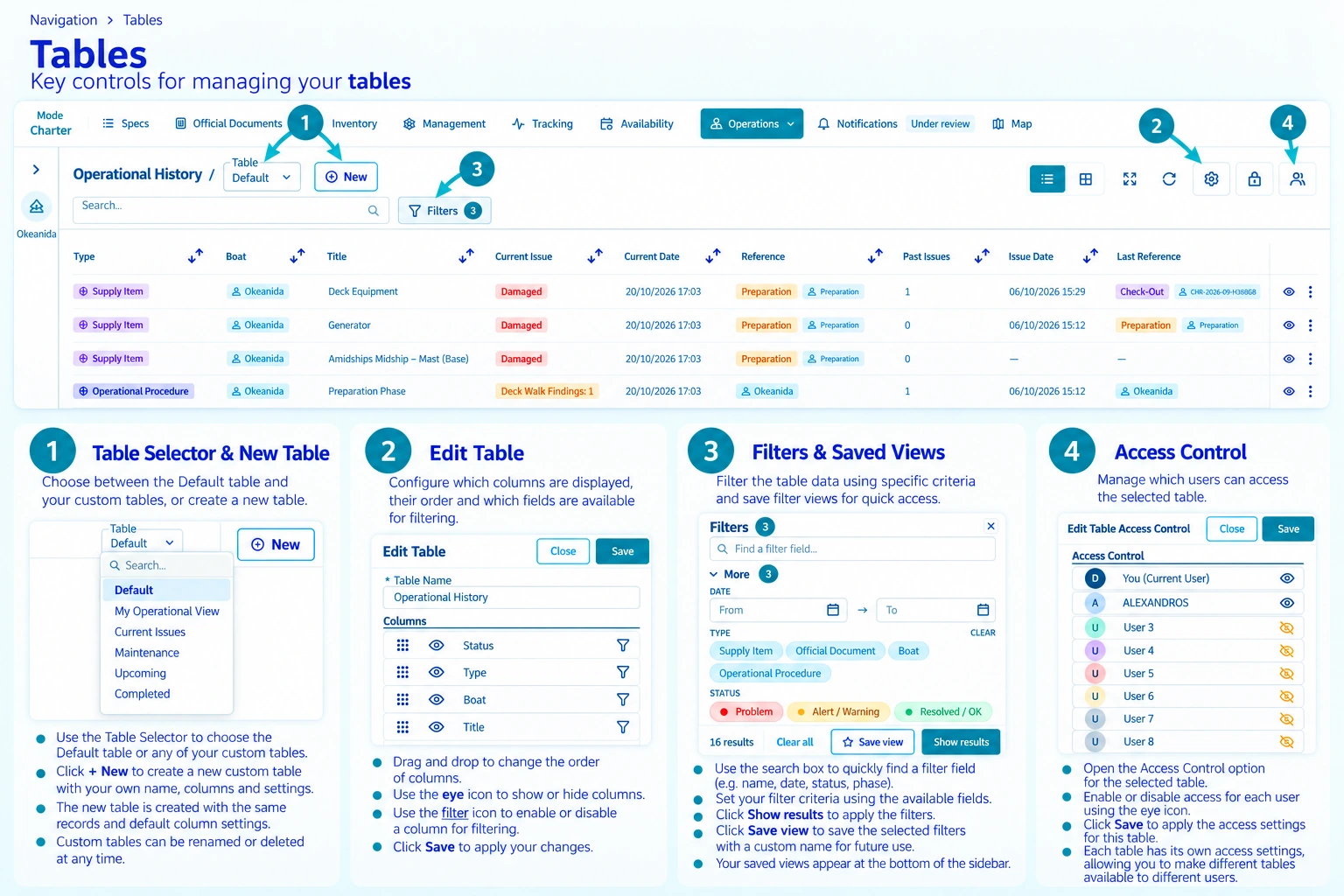
This guide walks you through the four main table management areas: Table Selector & New Table, Edit Table, Filters & Saved Views and Access Control. The annotated screenshots illustrate the available controls and the steps for using them.
1. Understanding Default & Custom Tables
When you open a table-based workspace, you can work with its Default Table or select an available Custom Table. These tables provide different ways to present and organize records in the same workspace.
Default Table
The standard table configuration provided for the workspace. Its name is fixed, while available table settings can be adjusted through Edit Table.
Custom Tables
Additional named configurations that initially use the same records and default column settings as the Default Table. You can rename or delete Custom Tables, customize their columns and switch between configurations using the Table Selector.
2. Editing an Existing Table
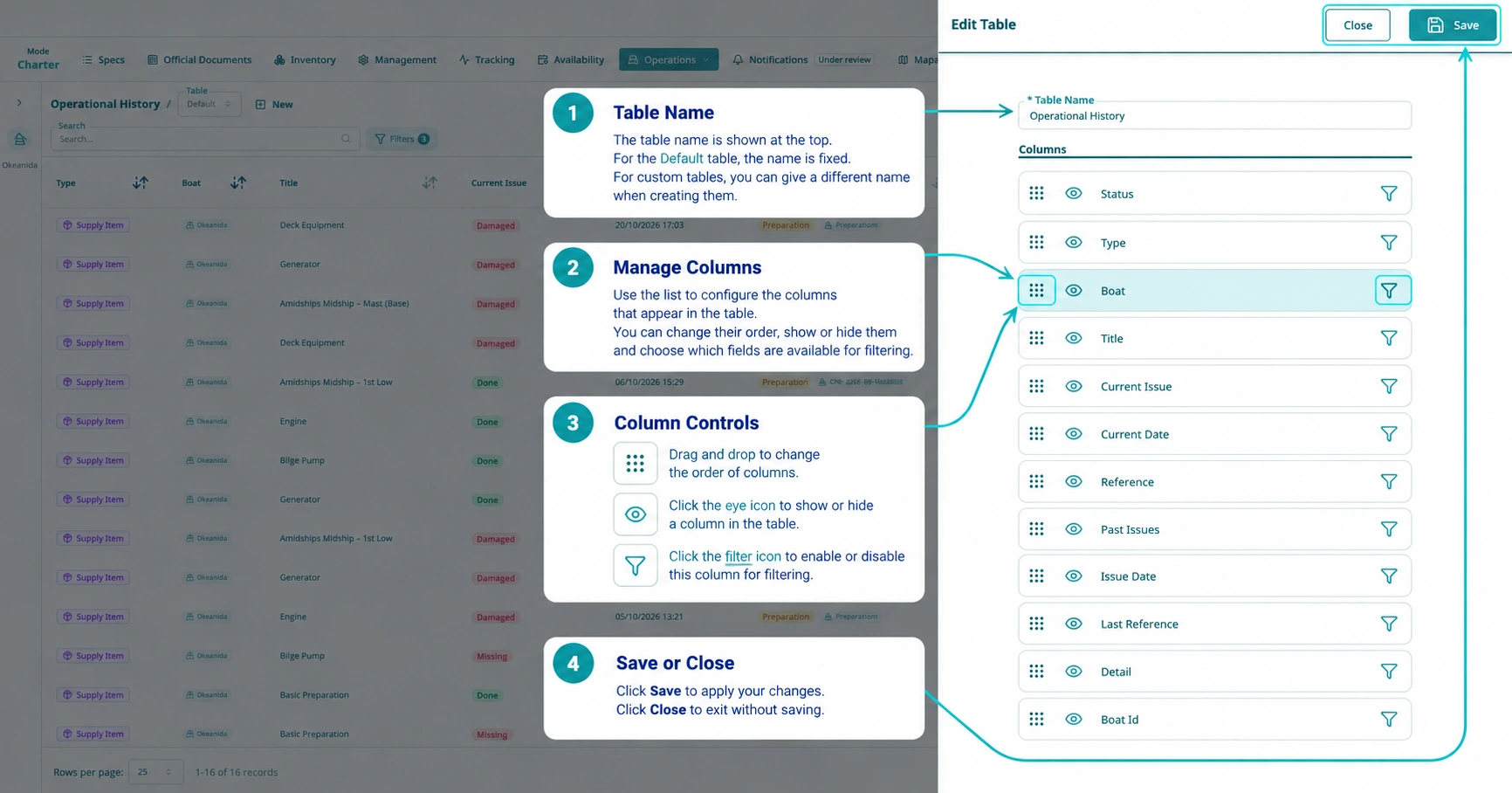
Use Edit Table to control how information is presented in the selected table. The Edit Table sidebar lets you manage column order, visibility and filter availability.
- Open the table you want to customize and select Edit Table (gear icon).
- Review the Table Name at the top of the sidebar. The Default Table name is fixed; you can choose or change the name of a Custom Table.
- Use the drag handle beside a column to drag and drop it into your preferred order.
- Select the eye icon to show or hide the column in the table.
- Select the filter icon to enable or disable that field as an available filtering option.
- Click Save to apply your changes, or Close to exit without saving.
3. Creating a New Custom Table
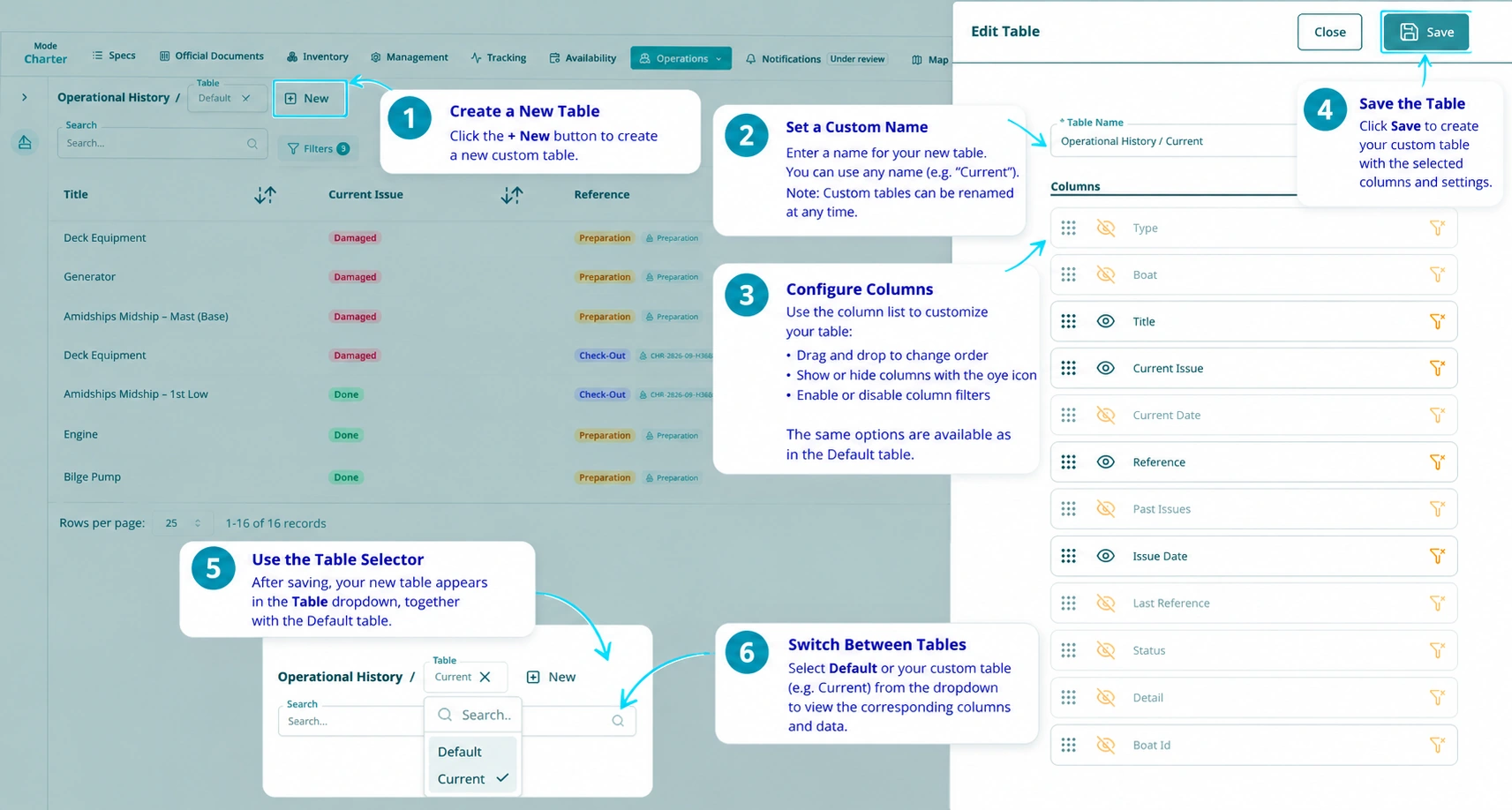
Create a Custom Table when you want a named configuration for a particular activity or working preference. A new Custom Table starts with the same underlying records and default column settings; you can then tailor its columns without creating a separate set of records.
- Select + New next to the Table Selector.
- Enter a custom table name, such as “Current”. You can rename a Custom Table later.
- Configure the columns using the drag handles for order, eye icons for visibility and filter icons for filtering availability.
- Click Save to create the Custom Table with the selected columns and settings.
- Open the Table Selector to find your new table alongside the Default Table.
- Select Default or your named Custom Table to switch between configurations.
You can rename or delete Custom Tables when your working requirements change. Choose descriptive names so each configuration is easy to identify.
4. Selecting and Switching Between Tables
The Table Selector lets you move between the Default Table and your available Custom Tables. Each selection opens the corresponding table configuration so you can work with the information in the layout that best suits your current task.
- Open the Table Selector at the top of the table interface.
- Review the available Default and Custom Tables.
- Select the table you want to use.
- Review the displayed columns and return to the Table Selector whenever you want a different configuration.
The Table Selector and Custom Table creation process are illustrated together in Figure TB-039 above.
5. Applying Filters & Saving Views
Filters help you focus on records that match specific conditions. You can combine available criteria, display the matching results and save frequently used filter combinations as named views.
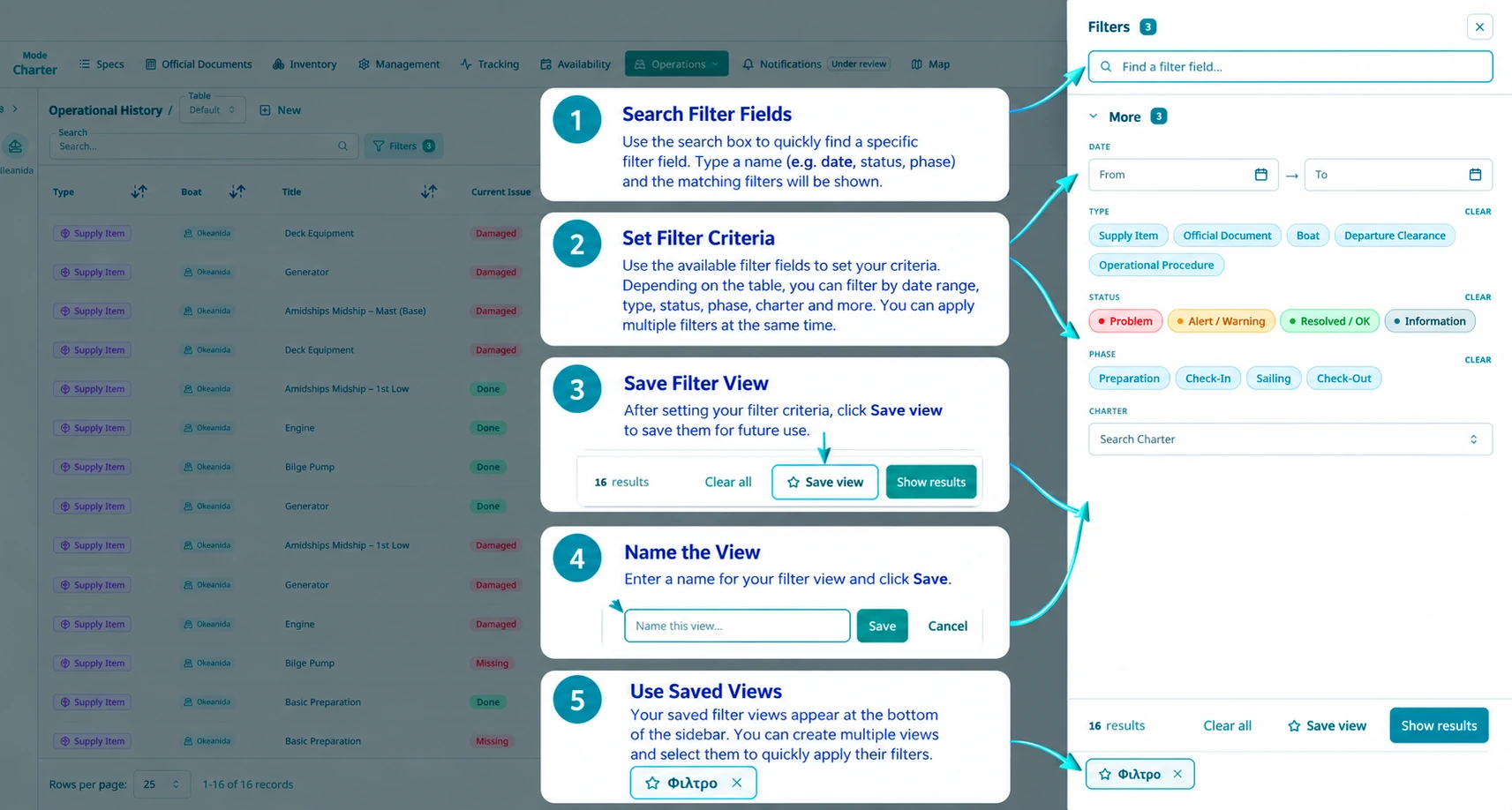
- Click Filters to open the filtering sidebar.
- Use Find a filter field… to locate a field by name, such as date, status or phase.
- Set your criteria using the available fields. Depending on the table, options can include date ranges, type, status, phase and charter. You can apply multiple filters together.
- Use the available Clear options for individual filter groups, or Clear all to reset the selected criteria.
- Click Show results to display matching records. The sidebar also shows a result count.
- To keep the combination for later, click Save view, enter a name and click Save.
- Find your saved filter views at the bottom of the sidebar and select one to apply its criteria again. You can create multiple saved views.
Filters
Apply structured criteria to narrow the records displayed in the current table.
Saved Views
Keep a named combination of filter criteria so you can return to the same selection more quickly.
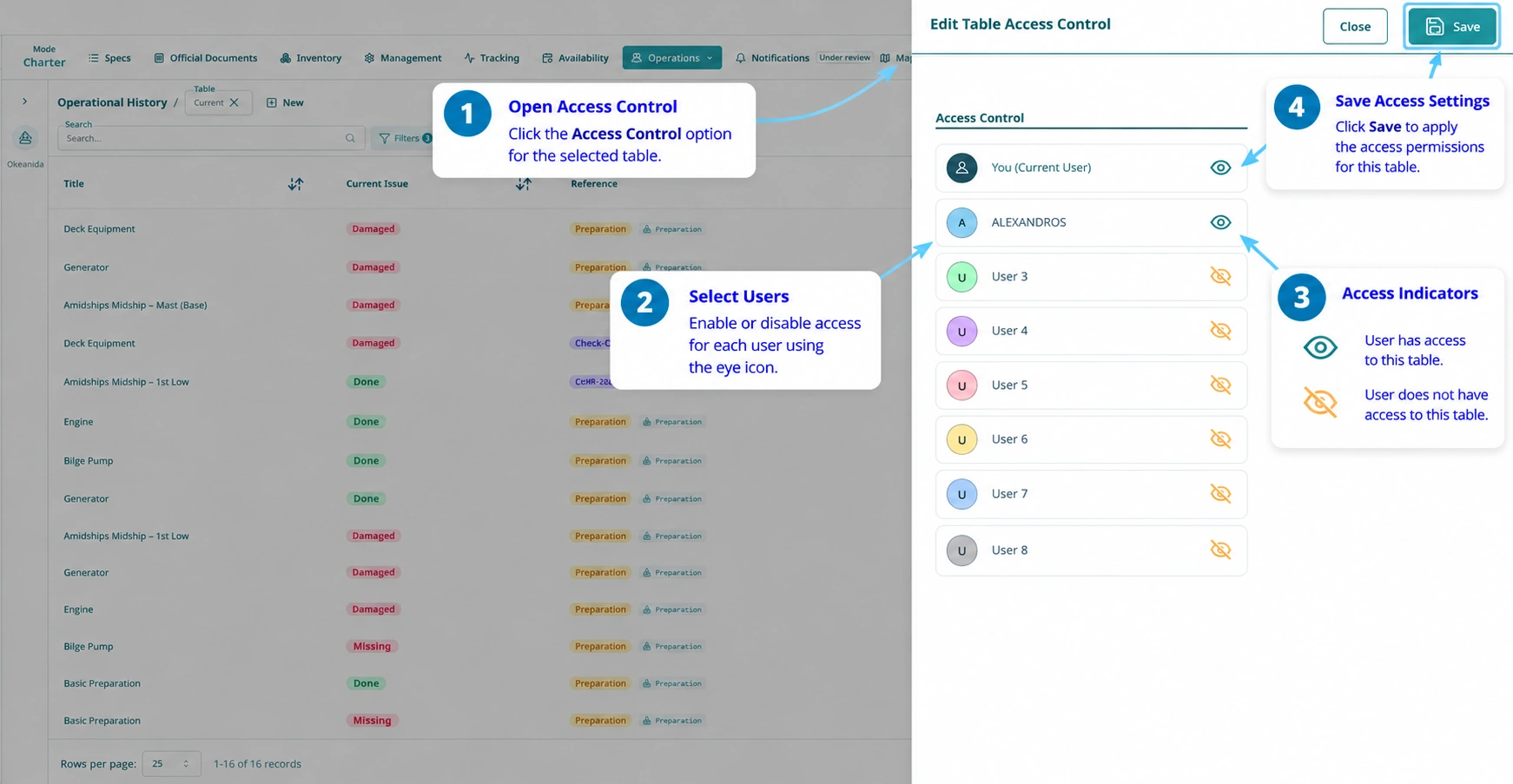
6. Managing Table Access Control
Use Access Control to manage which users can view a selected table. The available controls let you enable or disable table access for individual users and save the resulting configuration.
- Select the table whose access permissions you want to manage.
- Open Access Control (user-access icon) for that table.
- Review the users listed in the Edit Table Access Control sidebar.
- Use the open eye icon to indicate that a user has access, or the crossed-out eye icon to indicate that the user does not have access. Select the icon to enable or disable access for that user.
- Click Save to apply the permissions for the selected table.
7. Key Takeaways
Organize your workspace
Use Default and Custom Tables to work with the same records through configurations suited to different tasks.
Personalize the layout
Use Edit Table to arrange columns, control visibility and configure filtering availability.
Find and reuse information
Combine filters to display relevant records, then save useful combinations as named views.
Manage table access
Use Access Control to configure which users can view an individual table.
Return to Working with Tables & Views for an overview of the table interface, view options and everyday controls.