
Table, Card & Calendar Views
Table, Card & Calendar Views
Learn how to switch between available layouts and choose the most useful way to review records, operational details and scheduled charters in TallyBoat.
TallyBoat provides different ways to display records within supported areas of the platform. In the Charters section, the View Switcher lets you move between Table View, Card View and Calendar View. Each layout presents the same operational area from a different perspective, helping you focus on the details most relevant to your work.
1. Understanding the View Switcher
Open the Charters section and locate the three layout icons near the upper-right corner of the page. The currently active view is highlighted. Select another icon to change how the charter records are presented.
- Open the section or record list you want to review.
- Locate the View Switcher at the top of the page.
- Select Table, Card or Calendar, where that option is available.
- Review the information in the selected layout and switch again whenever another perspective is more useful.
One set of records, different perspectives. The view changes how information is displayed. In the Charters example, the Table View emphasizes rows and columns, Card View emphasizes individual charter summaries, and Calendar View emphasizes dates and boat timelines.
2. Table View — Compare Records in Rows and Columns
Table View organizes charter records into rows, with key fields arranged in columns. It is useful when you want to scan many charters, compare values or find a specific record.
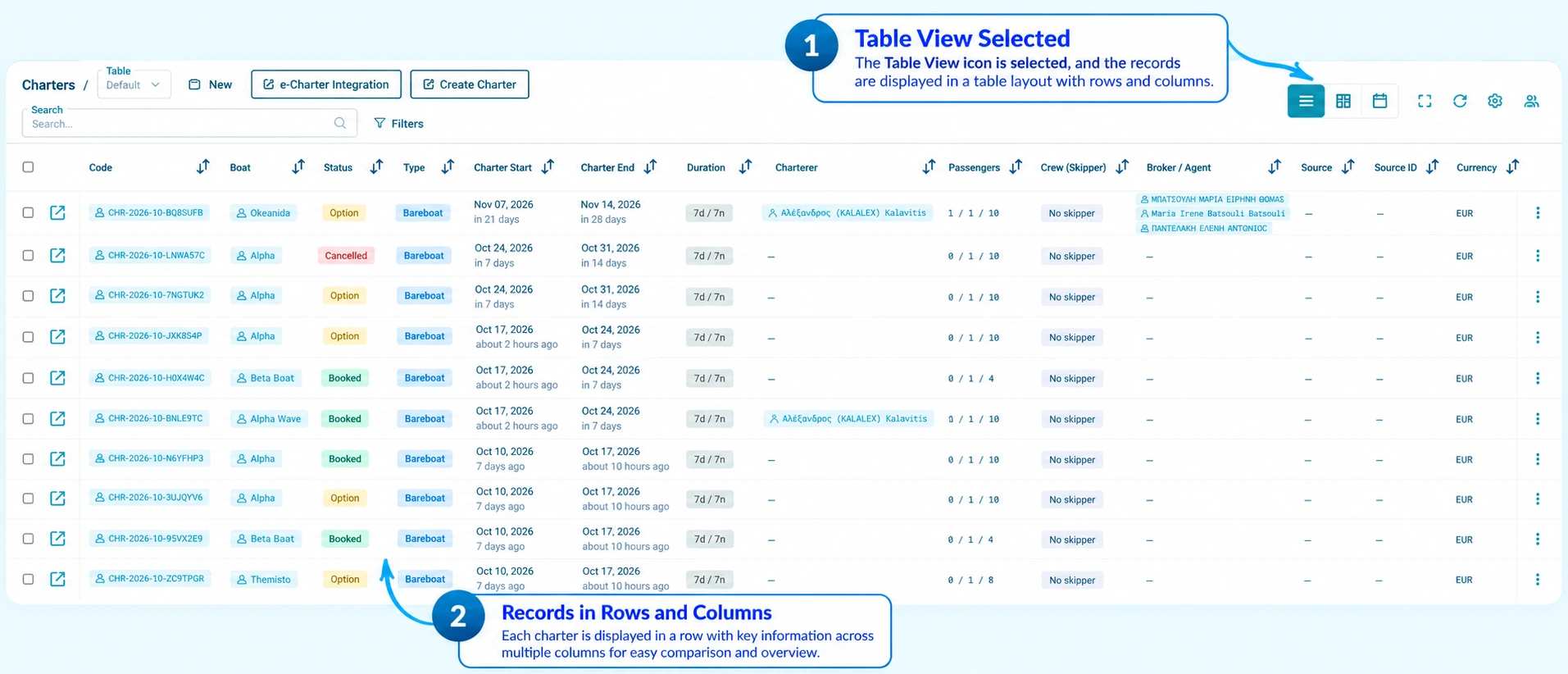
In the illustrated Charters table, the visible fields include the charter code, boat, status, type, charter start and end dates, duration, charterer, passengers, skipper, broker or agent, source and currency. The columns allow you to review corresponding information across multiple records.
Best for scanning
Review multiple charter records together and quickly identify differences in dates, statuses or assigned parties.
Best for structured comparison
Use the column layout to compare the same field across many charters without opening each record.
For details about selecting tables, changing columns and using saved filters, see Working with Tables & Views and Creating & Customizing Tables.
3. Card View — Review Each Charter as a Summary
Card View presents each charter as an individual card. It brings several categories of information together, allowing you to review the operational and financial picture of a charter in one place.
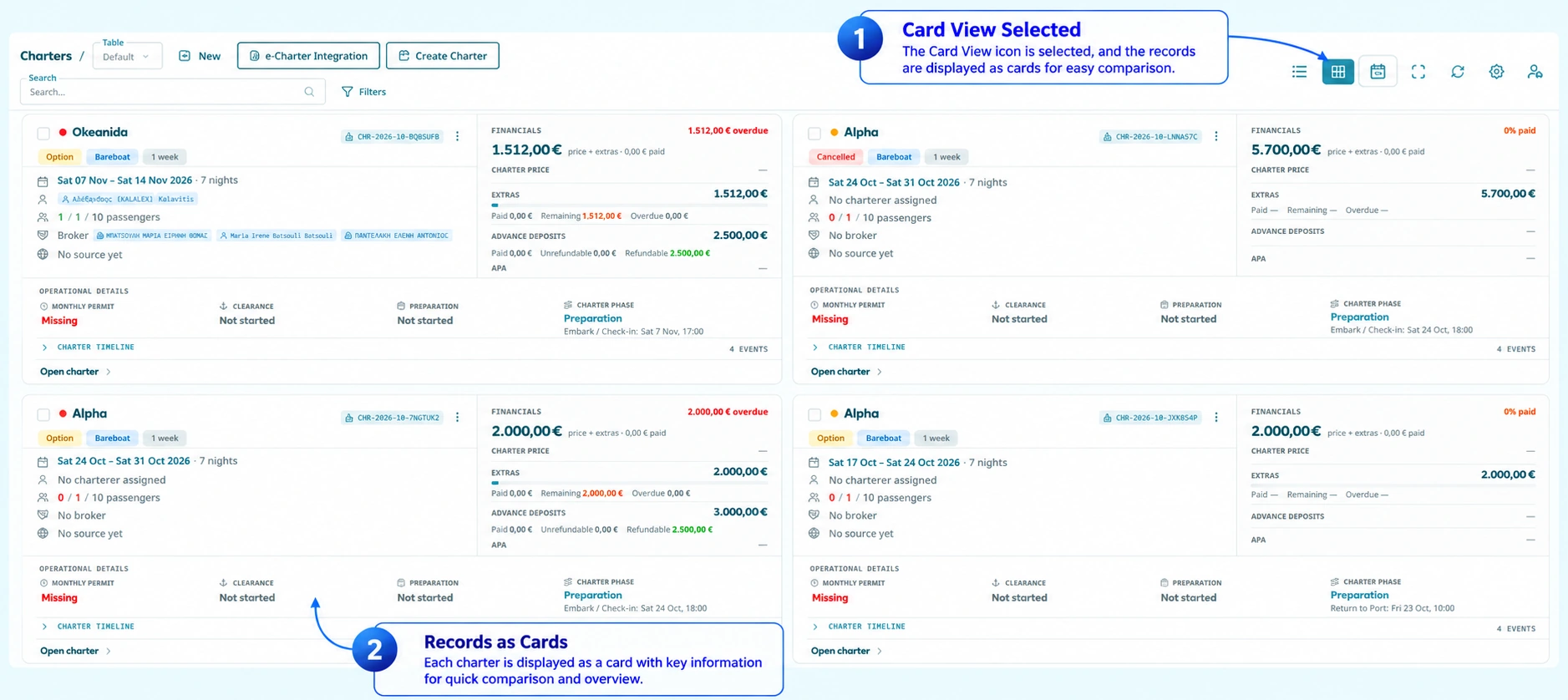
In the illustrated Charters Card View, each card contains a charter identifier and boat, booking status and dates, information about the charterer and passengers, broker details where available, and a financial summary. The lower section shows operational indicators such as permit, clearance, preparation and charter phase. A charter timeline section and an Open charter action are also visible.
Best for individual overview
Read the main details of a charter without following information across a wide table.
Best for operational review
See booking, financial and preparation indicators together when checking the current position of a charter.
4. Calendar View — See Charters Across Boat Timelines
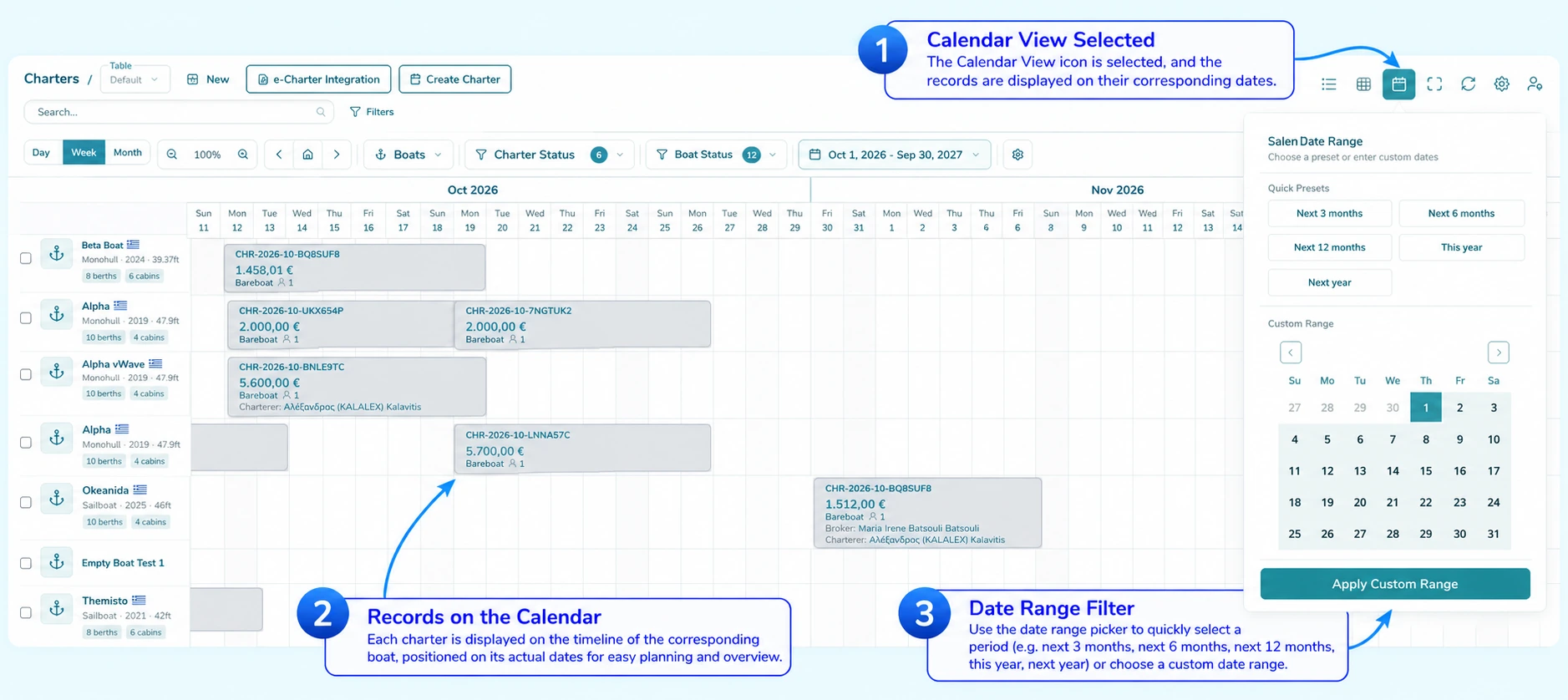
Calendar View presents charter bookings against dates on a horizontal timeline. In the illustrated Charters calendar, boats appear as separate rows and bookings are positioned across the dates to which they relate. This makes the layout useful for reviewing scheduling and the distribution of bookings across boats.
4.1 Change the Calendar Time Scale
Use the Day, Week and Month controls at the top-left of the calendar to change the time scale shown on the timeline. The selected option is highlighted.
Day
Displays individual dates along the timeline, as shown in the detailed calendar screenshot.
Week
Groups the timeline into weekly intervals, giving a broader overview of upcoming bookings.
Month
Provides a month-based time scale for reviewing bookings across a longer period.
Zoom and navigation
Use the visible zoom percentage and zoom controls, previous/next arrows and home control to adjust or navigate the displayed timeline.
4.2 Focus the Calendar with Filters
The calendar toolbar includes a Boats selector, a Charter Status filter and a Boat Status filter. Use these controls to focus the timeline on the boats or statuses relevant to the current review. The calendar also displays a settings icon for additional calendar configuration.
4.3 Choose the Date Range
Select the date range control in the calendar toolbar to open the Select Date Range panel. The panel shown in the screenshot provides quick presets and a custom date selection.
- Open the date range control in the calendar toolbar.
- Choose a quick preset: Next 3 months, Next 6 months, Next 12 months, This year or Next year; alternatively, use the custom range calendar.
- For a custom selection, choose the desired date range in the calendar.
- Select Apply Custom Range to apply the custom period.
Practical example: Use Calendar View to review which boats have charters scheduled during a selected period. Switch to Table View when you want to compare charter fields, or Card View when you want to examine the operational and financial summary of individual bookings.
5. Which Views Are Available?
The available view options depend on the section and the layouts supported there. The screenshots in this guide demonstrate all three views in Charters. In another area of TallyBoat, you may see only the layout options provided for that type of record.
| View | Primary presentation | Typical use |
|---|---|---|
| Table | Rows and columns | Scan records and compare fields |
| Card | Individual record summaries | Review a charter’s key booking, financial and operational information |
| Calendar | Bookings positioned across dated boat timelines | Review scheduling, dates and boat-level bookings |
6. Key Takeaways
- Use the View Switcher to select an available layout; the active icon is highlighted.
- Choose Table View for rows, columns and side-by-side comparison.
- Choose Card View for a consolidated charter overview.
- Choose Calendar View for date-based charter scheduling across boats.
- In Calendar View, use the time-scale controls, filters and date range selector to focus the display.
- Available layouts vary according to the section and supported functionality.