
Selecting Records & Bulk Actions
Selecting Records & Bulk Actions
Learn how to select table records, review the selection count and use supported bulk actions to work with multiple items in TallyBoat.
In supported TallyBoat tables, you can select individual rows and work with several records through a shared Actions control. This guide uses a real example from a charter’s Finance → Transfers In table, where two transfer records are selected and the Payments & Transfers sidebar is opened.
1. Select One or More Records
Open a table that supports row selection. In the illustrated example, open a charter, choose Finance, and then select Transfers In. Each visible transfer row has a checkbox in the first column.
- Find the first record you want to work with.
- Select its checkbox at the left of the row.
- Select additional checkboxes to include more records in the same operation.
- Check the floating selection bar to confirm how many records are currently selected.
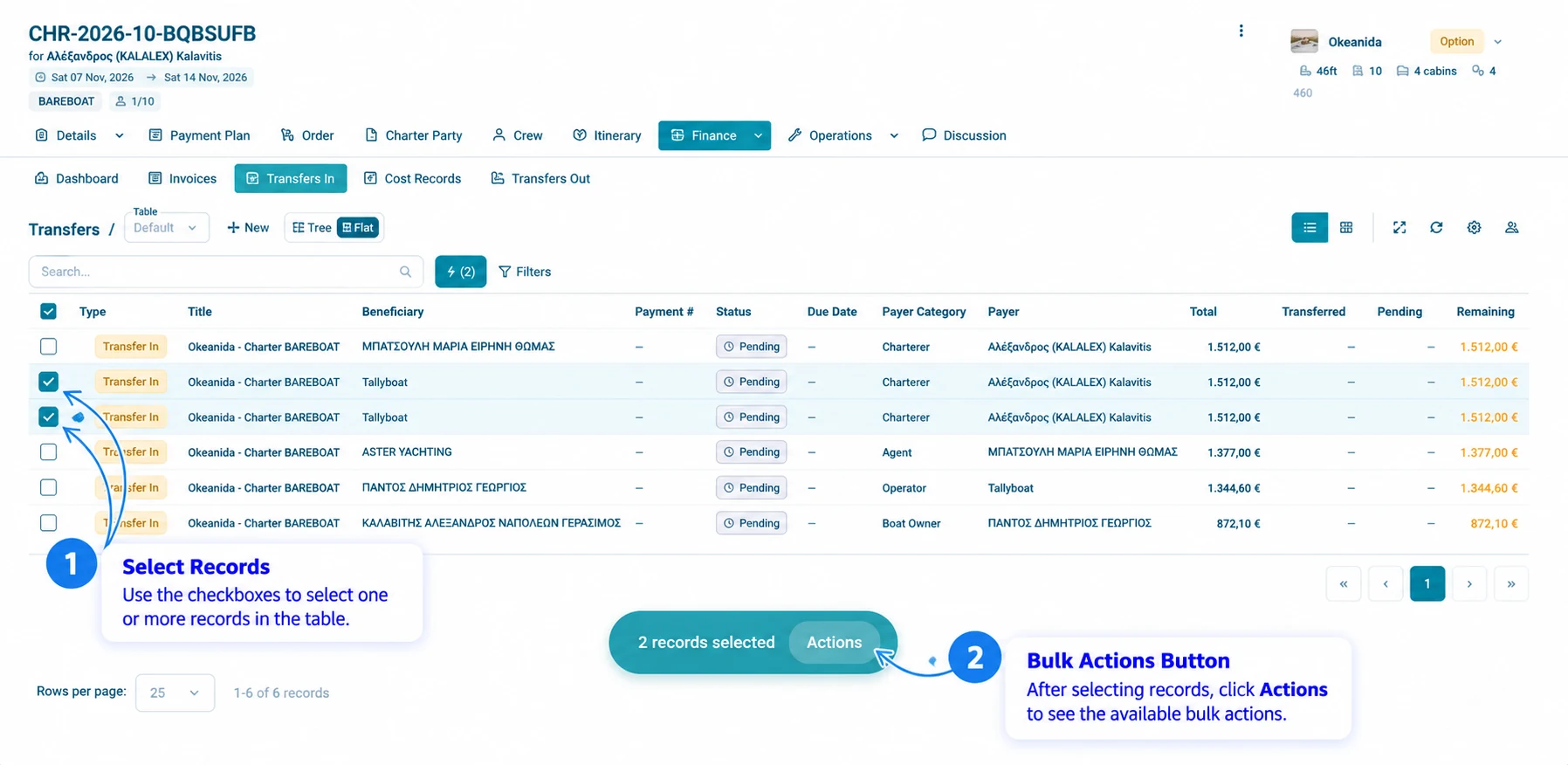
Example: The screenshot shows two transfer rows selected. The floating bar reads 2 records selected and offers an Actions button. The selected rows remain visible in the table, so you can check your choice before continuing.
2. Understand the Header Selection Control
The checkbox at the top of the selection column is the header selection control. It provides a table-level way to manage row selection. In the screenshot, the header control shows a horizontal mark while two of the six displayed records are selected; this indicates a partial selection.
Use the individual row checkboxes when you want a precise subset. When using the header control, verify the selection count before proceeding, especially in tables with filters, multiple pages or records that may have different eligibility rules.
Selection scope: The screenshots confirm the partial-selection indicator, but they do not establish whether a header click selects the current page, all filtered results or every eligible record across pages. Check the resulting count in your table before applying an action.
3. Open Bulk Actions
Once you select records, the floating bar provides the Actions button. In the Transfers In example, selecting Actions opens the Payments & Transfers sidebar.
- Select the records you want to include.
- Review the number shown in the floating selection bar.
- Click Actions.
- Review the sidebar and the records presented for processing.
The action options and the interface that follows can depend on the table and the type of records selected. This guide documents the Payments & Transfers sidebar shown in the provided charter finance example.
4. Review the Payments & Transfers Panel
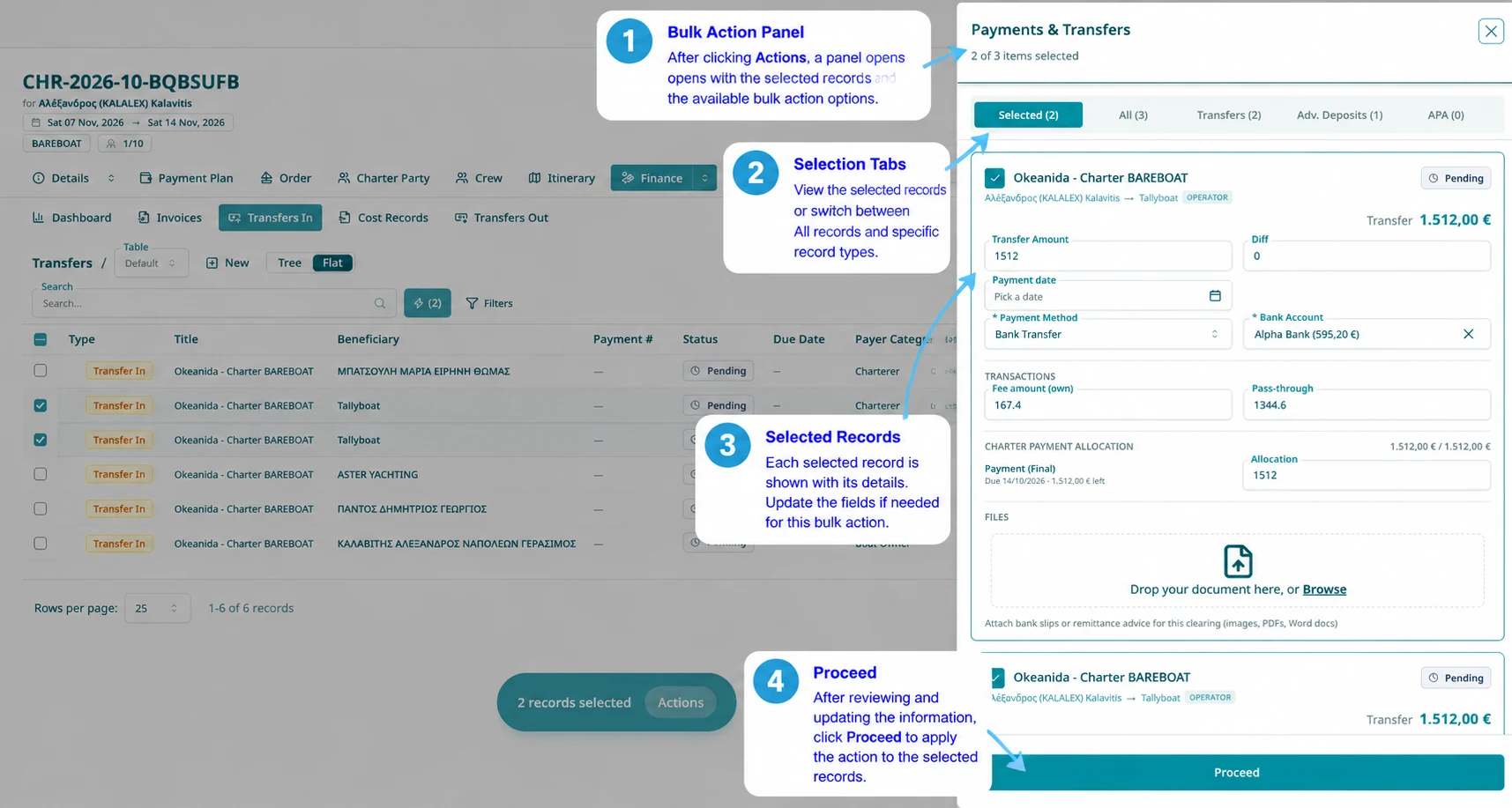
The example sidebar appears on the right side of the screen while the underlying table remains visible. Its heading reads Payments & Transfers, followed by a selection summary. The screenshot shows 2 of 3 items selected.
4.1 Use the Selection Tabs
At the top of the sidebar, tabs organize the available items. The illustrated panel displays Selected (2), All (3), Transfers (2), Adv. Deposits (1) and APA (0). The counts help you distinguish the selected items from the broader set presented in this workflow.
4.2 Review Each Item
Each transfer is presented as an individual section with its own checkbox, title, payer-to-beneficiary relationship, status and amount. In the screenshot, a selected transfer is marked Pending and has a displayed transfer amount of €1,512.00.
Payment information
Review the transfer amount, difference, payment date, payment method and bank account fields shown for the selected item.
Transaction details
Review the fee amount and pass-through values shown in the Transactions section.
Charter payment allocation
Check the linked payment installment and the amount assigned in the Allocation field.
Supporting files
Use the Files area to attach relevant bank slips or remittance advice where required by the workflow.
4.3 Continue with Proceed
- Confirm which items are checked in the sidebar.
- Review the information shown for each selected transfer.
- Complete or adjust the applicable fields and supporting documents as needed.
- Click Proceed to continue the action workflow.
Before proceeding: Check the selected items, amounts, payment details and allocation values carefully. The screenshot shows the Proceed control, but it does not show the subsequent confirmation or processing result. Follow the instructions presented by TallyBoat in the next step.
5. Understand Which Records Are Included
Two different counts appear in the illustrated workflow. The table selection bar shows 2 records selected, while the sidebar shows 2 of 3 items selected. The sidebar also provides tabs for transfers, advance deposits and APA items.
| Area | What to check |
|---|---|
| Table | Which row checkboxes are selected and what count appears in the floating bar. |
| Sidebar | Which item checkboxes remain selected and what the selection summary reports. |
| Tabs | Which items appear under Selected, All and the available record-type tabs. |
| Action | Which items and details you have reviewed before selecting Proceed. |
When you use bulk actions in another TallyBoat table, the available controls and the fields displayed may differ. Use the visible selection count and the action panel as your immediate reference for the records being worked on.
6. Key Takeaways
- Select individual rows using the checkboxes in the first table column.
- Use the floating selection bar to verify how many records are selected.
- The header checkbox provides a table-level selection control; confirm its resulting scope from the count displayed.
- Click Actions to open the supported bulk workflow.
- In the Transfers In example, the Payments & Transfers sidebar organizes items by selection and record type.
- Review each selected item’s details before clicking Proceed.